

Hotkeys
Configure global hotkeys to invoke your menus. Keyboard shortcuts, mouse buttons, and function keys are all supported.
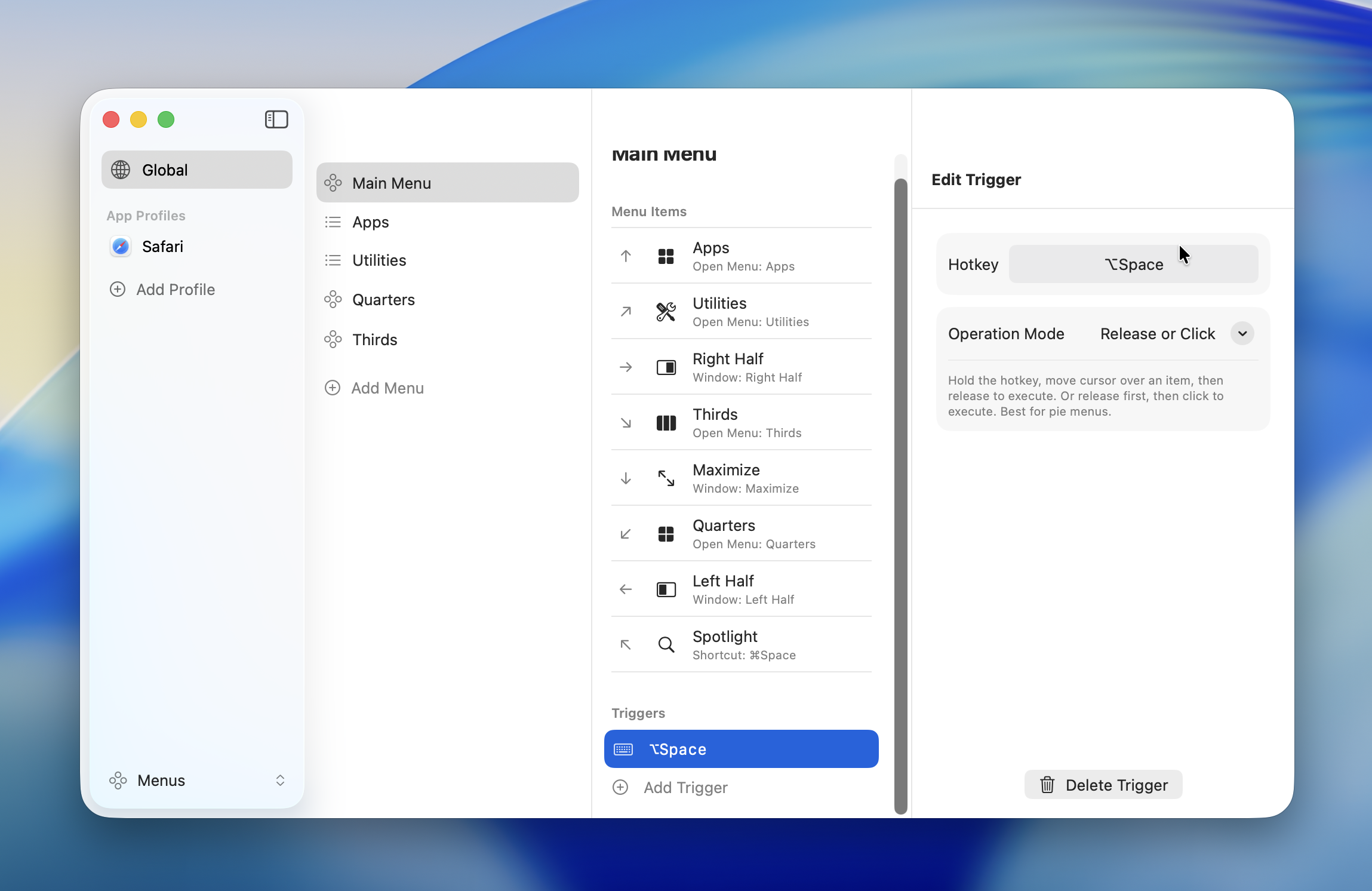
Hotkey Types
Keyboard Shortcuts
Set a hotkey using a key combination or a single key.
| Modifier | Symbol |
|---|---|
| Command | ⌘ |
| Option | ⌥ |
| Control | ⌃ |
| Shift | ⇧ |
You can combine multiple modifiers (e.g., ⌘⇧A, ⌃⌥Space).
Single Key Shortcuts
A single key — such as a modifier key on its own (e.g., L⇧, R⌘) or a regular key (e.g., Tab, Backtick) — can also be registered as a hotkey. A confirmation dialog appears when registering a single key.
WARNING
When you set a single key as a hotkey, that key will no longer work for normal input.
- Global Profile: The key won't work for normal input in any application while Radiant is running
- App-specific Profile: The key won't work for normal input in that app only
Click "Register" to confirm, or "Cancel" to revert to the previous shortcut. Function keys (F1–F12) are registered without confirmation.
Mouse Buttons
Use your mouse's middle button or side buttons as hotkeys.
| Button | Description |
|---|---|
| Middle | Middle button (wheel click) |
| Mouse4 | Side button (back) |
| Mouse5 | Side button (forward) |
| Mouse6 -- Mouse12 | Extended buttons (for multi-button mice) |
INFO
The left button (button 1) and right button (button 2) can't be used as hotkeys.
Mouse buttons can be combined with modifiers (e.g., ⌘ + Mouse4). You can also use a mouse button on its own without any modifier.
Function Keys
F1 through F12 can be used as hotkeys on their own. Combining them with modifiers is also supported.
TIP
To use function keys without holding fn, enable standard function key behavior in macOS: System Settings > Keyboard > Keyboard Shortcuts > Function Keys.
Close Mode
Each hotkey has a close mode that controls how menu items are executed.
| Mode | Behavior | Best for |
|---|---|---|
| Release or Click | Execute on key release or click | Radial Menu default |
| Click | Execute on click only | List Menu default |
| Toggle | Execute on click; menu stays open | Repeated actions |
Release or Click
The default close mode for Radial Menus. It supports two interaction patterns:
- Hold: Hold the hotkey, move the mouse to an item, then release to execute
- Click: Press and release the hotkey, then click an item to execute
This mode works best with Radial Menus and suits most use cases.
Click
The default close mode for List Menus. Items are only executed on click. Releasing the hotkey doesn't trigger anything.
Use this when the mouse travels a longer distance and you want to avoid accidental triggers.
Toggle
Items are executed on click, but the menu stays open afterward. You can execute multiple actions in a row. Press the same hotkey again to close the menu.
TIP
This is handy for executing several window management actions in sequence or adjusting volume step by step.
INFO
When you add a new hotkey, the close mode is automatically set based on the menu type — "Release or Click" for Radial Menus and "Click" for List Menus. You can change it manually afterward.
Recording a Hotkey
- Click the "+" button in the menu's hotkey settings
- Click the input field to enter recording mode
- Press the key or mouse button you want to use
- Select a close mode
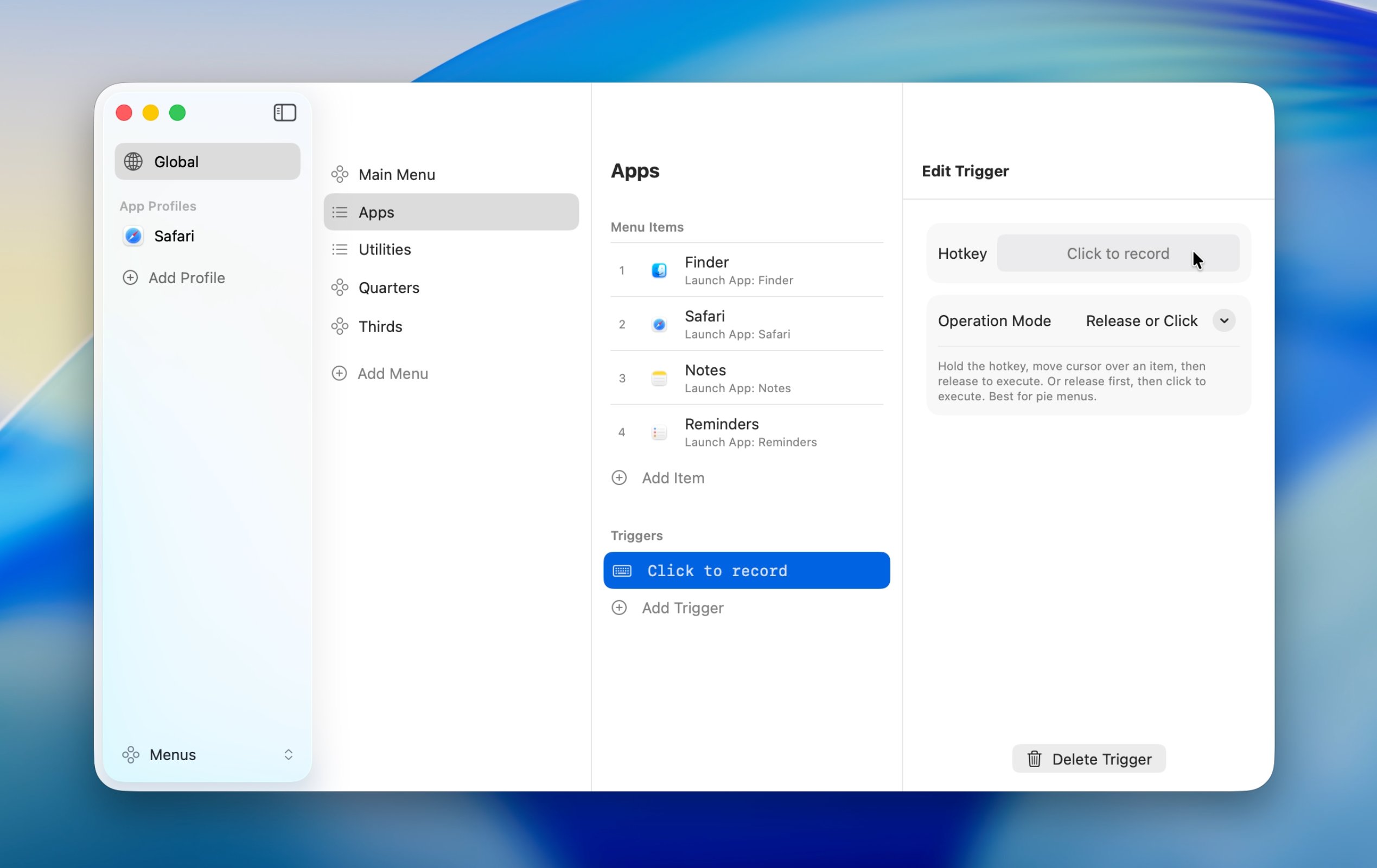
The recorded hotkey appears in the input field. To change it, click the field and record again.
Conflict Detection
A warning appears when the same hotkey is assigned to multiple menus.
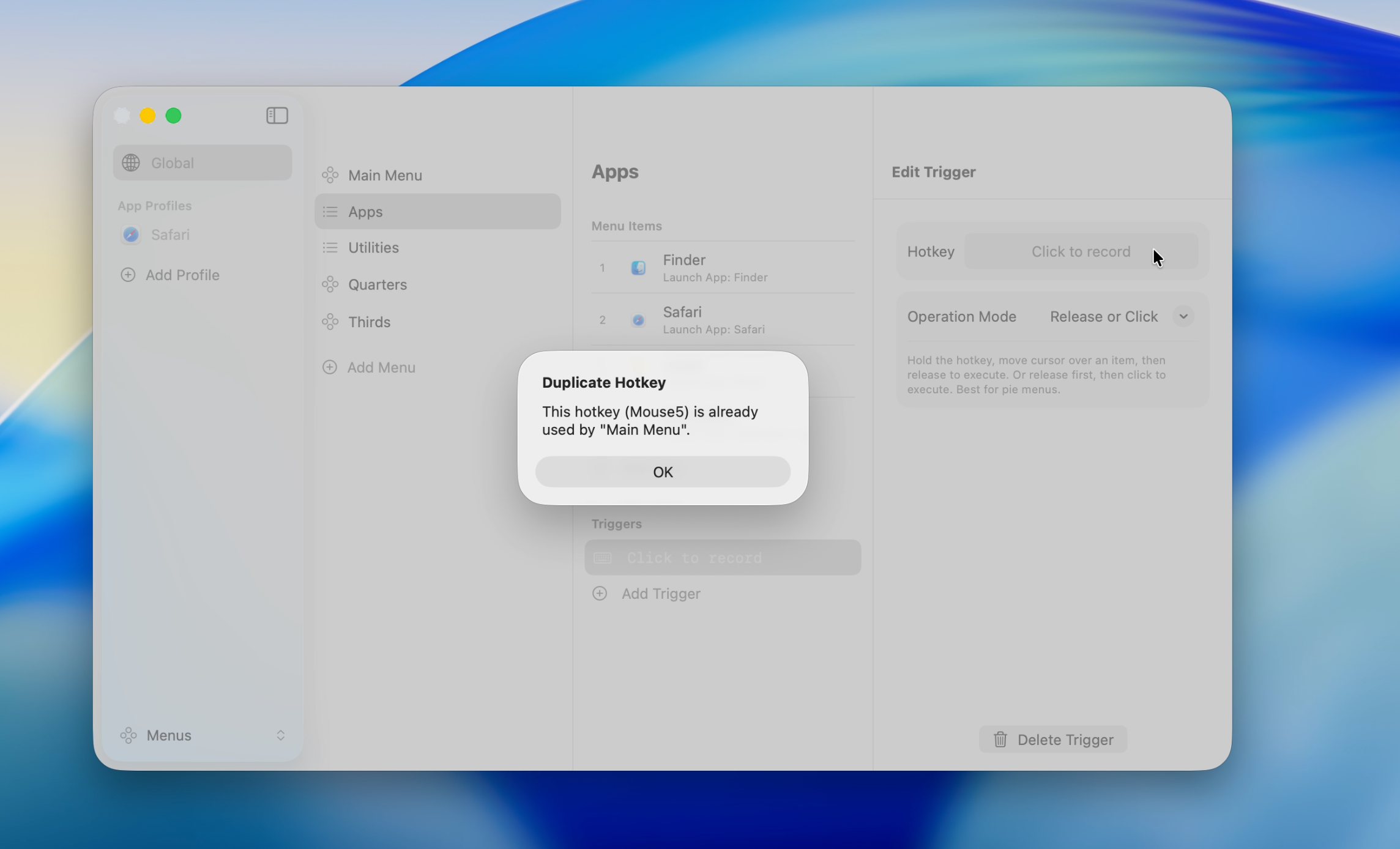
App-specific profiles take priority over the Global Profile, so using the same hotkey across them is fine. You only need to resolve duplicates within the same profile.
See App Profiles for details.