Send Keyboard Shortcuts
Run app-specific keyboard shortcuts from a Radiant menu. Organize hard-to-remember shortcuts into a menu so you don't have to memorize key combinations.
Setup
Create a menu for sending shortcuts.
- Open "Menus" in Settings and create a menu
- Click "Add Item" and select "Send Keyboard Shortcut" as the action type
- Click the input field and press the key combination you want to send
- Change the label to something descriptive (e.g., "Developer Tools", "Save All")
- Assign a hotkey to the menu
- Open the target app, press the hotkey, and pick a shortcut from the menu
TIP
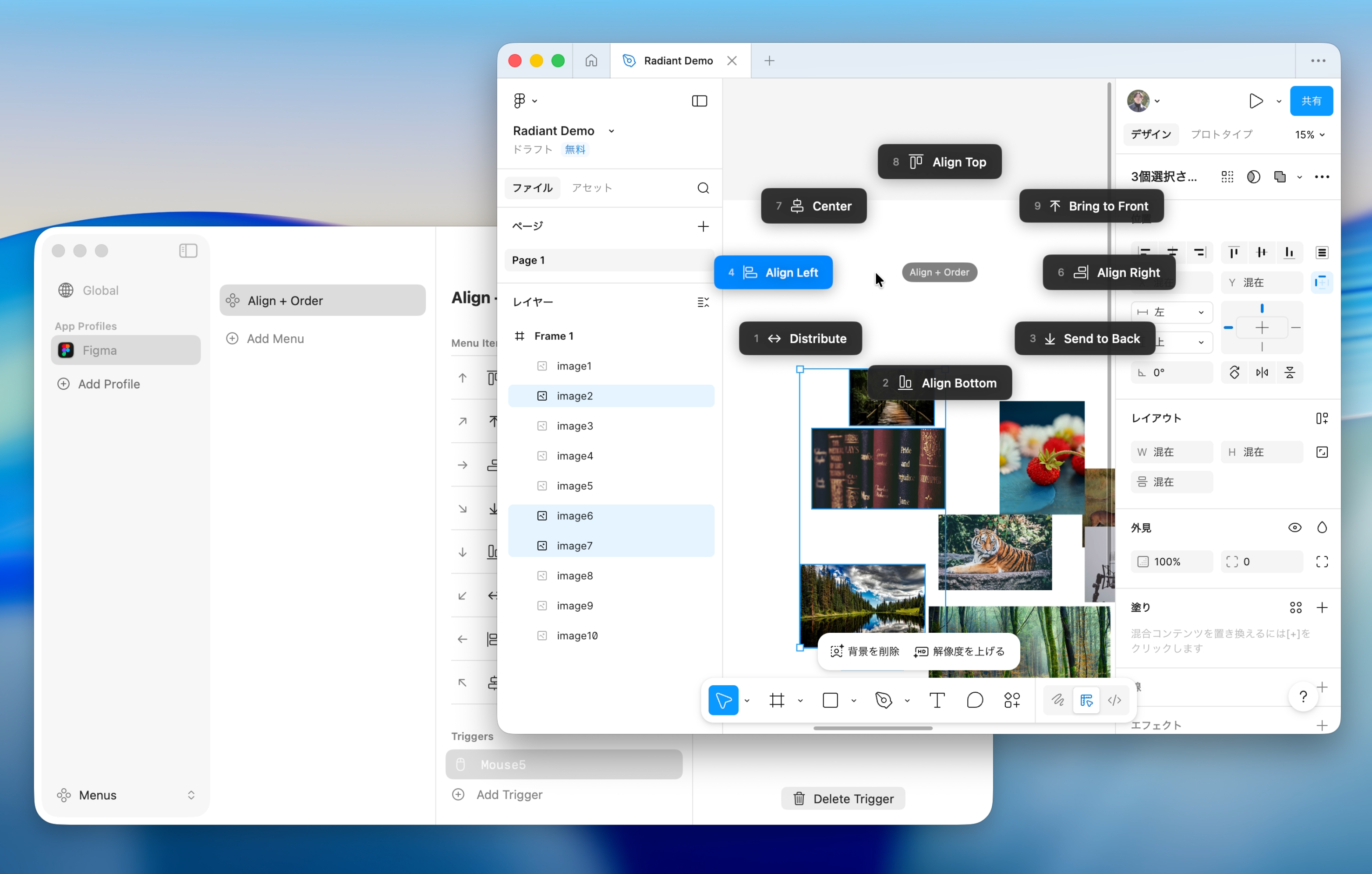
You can record modifier keys (⌘ ⌥ ⌃ ⇧) with any key. For example, set ⌥A for Figma's "Align Left".
Switch Menus per App with App Profiles
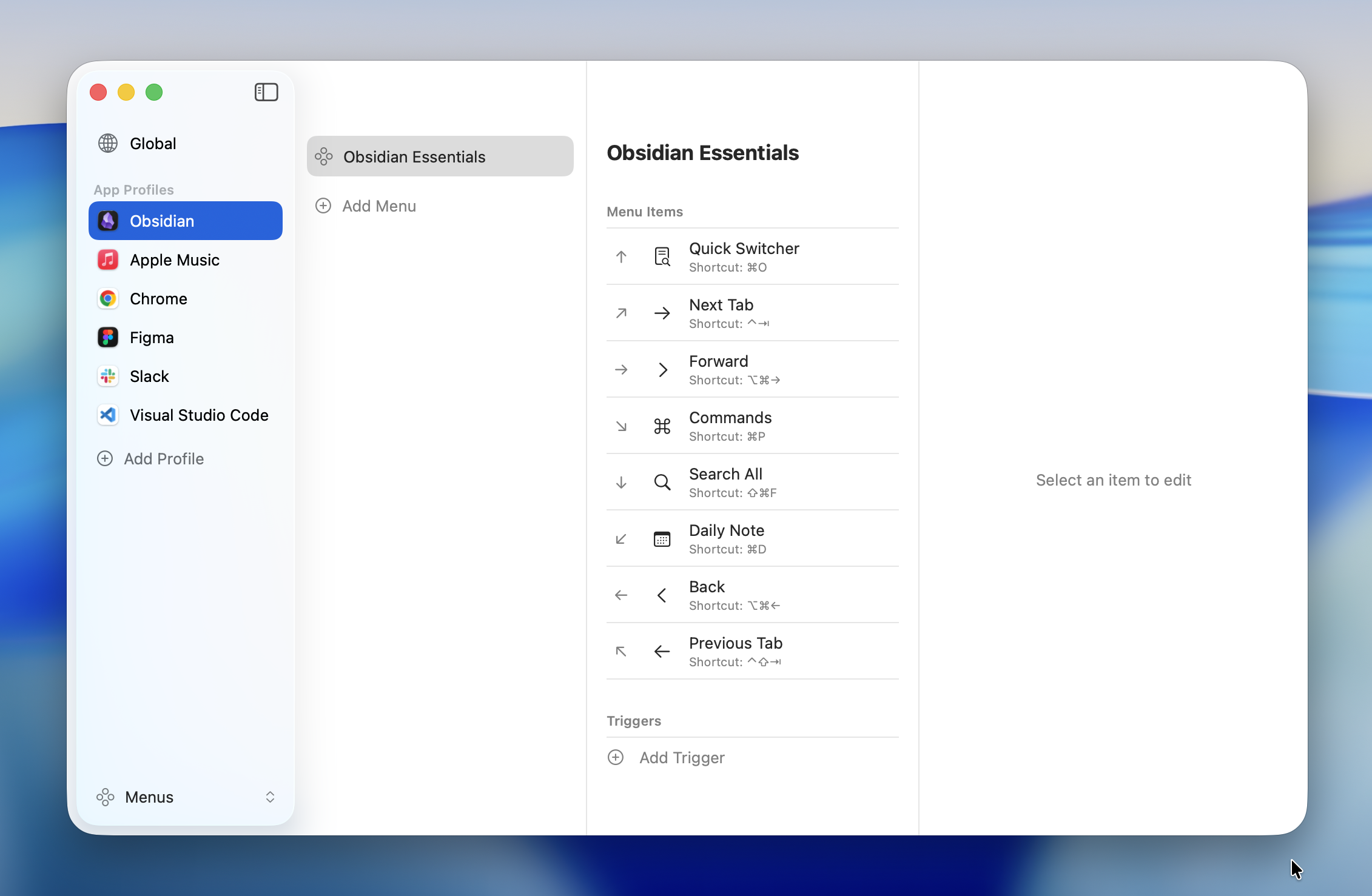
App Profiles let you show different shortcut menus depending on the active app. For example:
- Figma - Layer operations, tool switching, component creation
- VS Code - File search, terminal controls, editor splitting
- Photoshop - Layer operations, selection tools, filters
- Logic Pro - Track mute/solo, play/record, mixer view
- Spotify - Play/pause, next/previous track, shuffle toggle
-> See App Profiles for details.
Tips
Organize with a List Menu
If you have many shortcuts, use a List Menu with submenus to group them by category.
- File - New, Save, Save As
- Edit - Undo, Redo, Find and Replace
- View - Toggle Sidebar, Zoom In/Out
Combine with Macros
To run multiple shortcuts in sequence, use a macro. For example, you can chain "Select All -> Copy -> New File -> Paste" into a single action.
-> See Macros for details.
End of Quick Start
For details on menu types and settings, see the Menus, Macros, and General sections in the sidebar.