Window Management
Snap windows into any position with a single hotkey. Choose from 18 layouts to split the screen in half, quarter it, or move windows between monitors.
Available Layouts
| Category | Layouts |
|---|---|
| Halves | Left Half, Right Half, Top Half, Bottom Half |
| Quarters | Top Left, Top Right, Bottom Left, Bottom Right |
| Thirds | Left Third, Center Third, Right Third, Left Two-Thirds, Right Two-Thirds |
| Other | Maximize, Minimize, Center, Next Monitor, Previous Monitor |
Setup
Create a menu for window management.
- Open "Menus" in Settings and create a menu
- Click "Add Item" and select "Window Management" as the action type
- Choose a layout (e.g., Left Half)
- Add more items for each layout you want
- Assign a hotkey to the menu
- Press the hotkey to open the menu and pick a layout to apply it
TIP
When you select an action, the label and icon are set automatically. See Auto-populate for details.
Target Screen
In multi-monitor setups, you can choose which screen the window is placed on.
| Option | Description |
|---|---|
| Active Window's Screen | Places the window on the screen where the focused window is (default) |
| Menu Position's Screen | Places the window on the screen where the menu appeared. The menu acts as an anchor, letting you explicitly choose the target screen |
INFO
The target screen setting doesn't apply to Next Monitor, Previous Monitor, or Minimize.
Tips
Recommended Radial Menu Layout
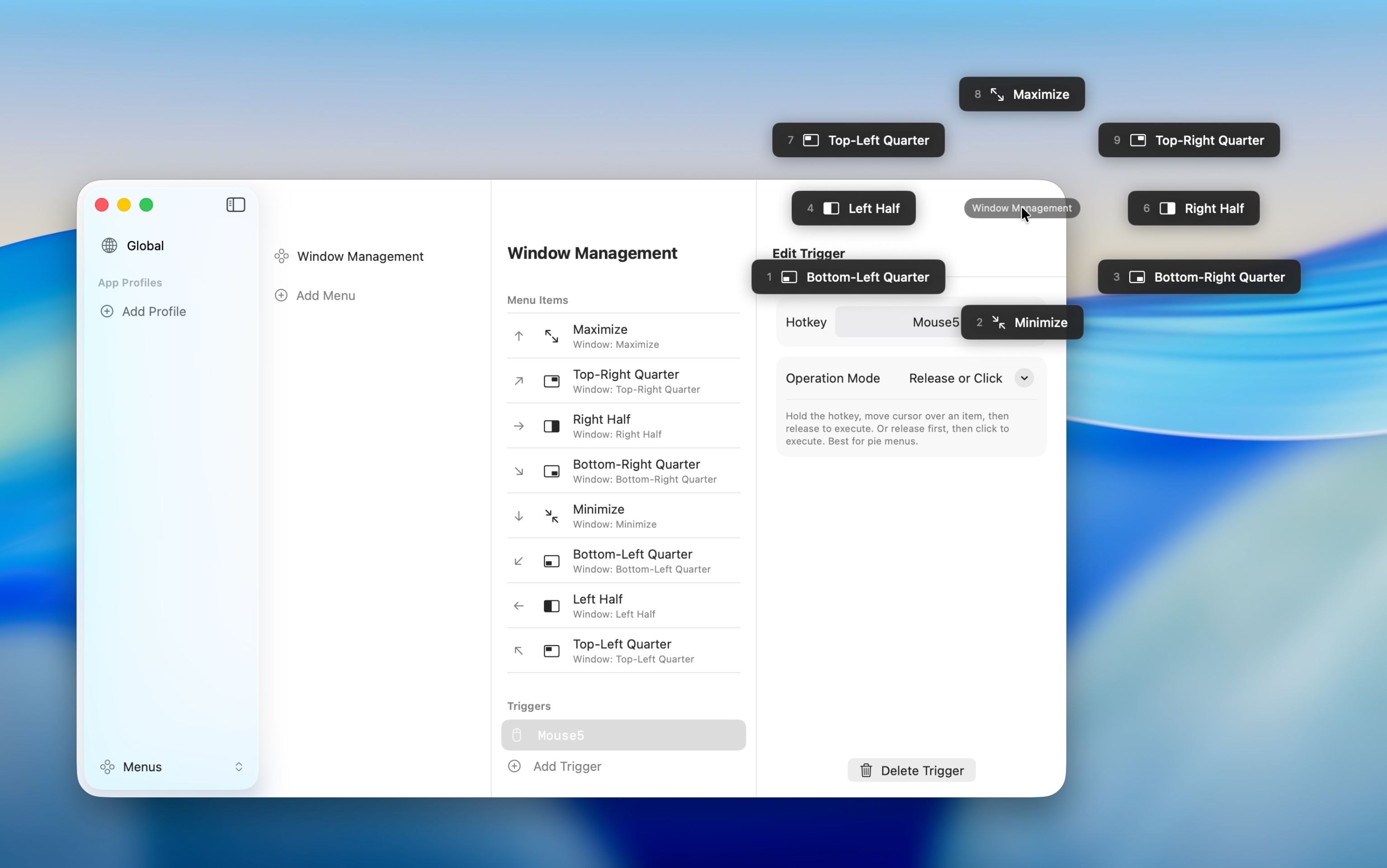
A Radial Menu has 8 directional slots, which maps naturally to window positions. Match each slot direction to a layout for intuitive control.
| Slot Direction | Recommended Layout |
|---|---|
| Left | Left Half |
| Right | Right Half |
| Top | Top Half (or Maximize) |
| Bottom | Bottom Half (or Minimize) |
| Top Left | Top Left |
| Top Right | Top Right |
| Bottom Left | Bottom Left |
| Bottom Right | Bottom Right |
Multi-Monitor Workflows
Add "Next Monitor" and "Previous Monitor" to your menu to move windows between screens. Combining layout actions and monitor actions in a single menu keeps everything one hotkey away.
You can also set the target screen to "Menu Position's Screen" -- simply open the menu on another monitor to move and snap the window there in one action.