

Macros Overview
Create automated workflows by combining multiple steps. Chain keyboard shortcuts, text input, app launches, and more into a single action to streamline repetitive tasks.
Macro Structure
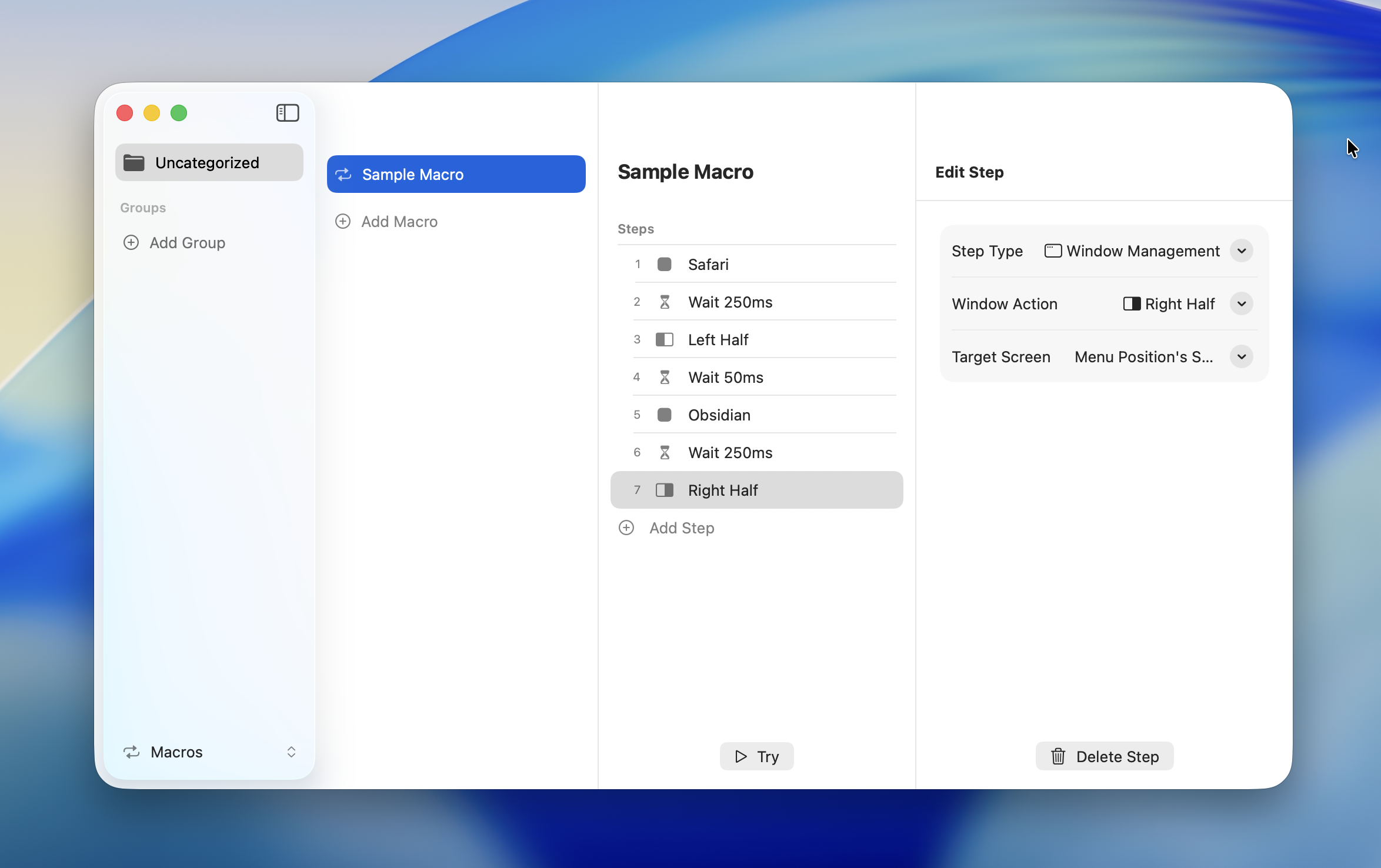
Macros consist of three elements:
| Element | Role |
|---|---|
| Macro Group | A folder for categorizing and organizing macros |
| Macro | A named collection of steps |
| Step | An individual operation within a macro (8 types) |
Macro Group
├── Macro A
│   ├── Step 1 (Keyboard Shortcut)
│   ├── Step 2 (Delay)
│   └── Step 3 (Text Input)
└── Macro B
    ├── Step 1 (Launch App)
    └── Step 2 (Window Management)
Macro Groups
Organize macros into groups. Creating groups by purpose or use case keeps things manageable as your macro collection grows.
Default Group
An "Uncategorized" group exists by default. It can't be deleted or renamed. Macros created without specifying a group are added to "Uncategorized."
Adding a Group
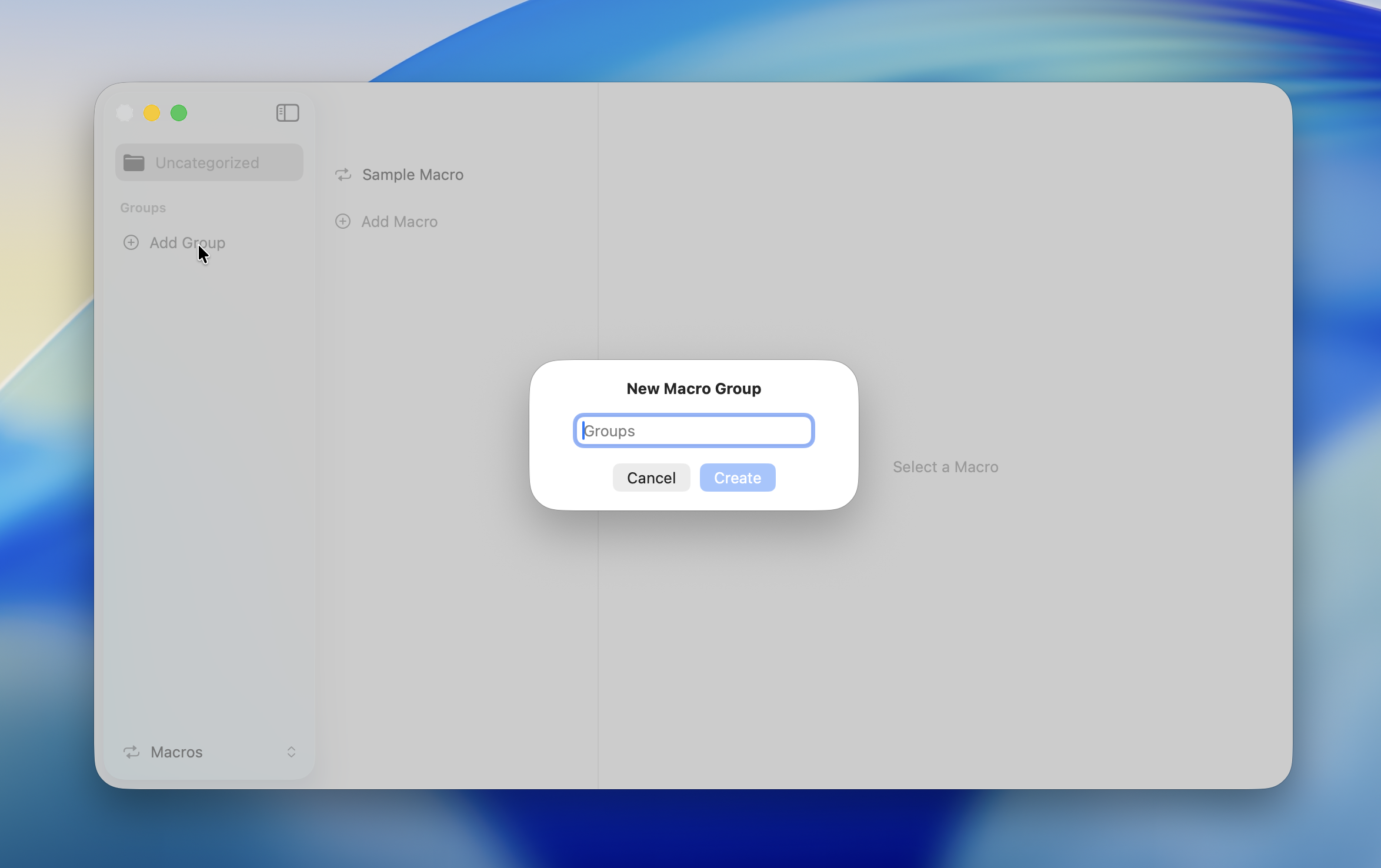
Click "Add Group" in the Macros section of Settings. Enter a group name to create it.
Renaming a Group
Right-click (or Control-click) a group and select "Rename" from the context menu.
TIP
The "Uncategorized" group can't be renamed.
Deleting a Group
Right-click a group and select "Delete" from the context menu. Deleting a group also deletes all macros it contains.
DANGER
Group deletion can't be undone. All macros in the group will be permanently lost.
Macro List
Select a group to view its macros. Each macro shows its name and step count.
For details on creating, editing, and running macros, see Creating & Running Macros.
Related Pages
- Step Types -- The 8 types of steps available in macros
- Creating & Running Macros -- How to create and run macros