Step Types
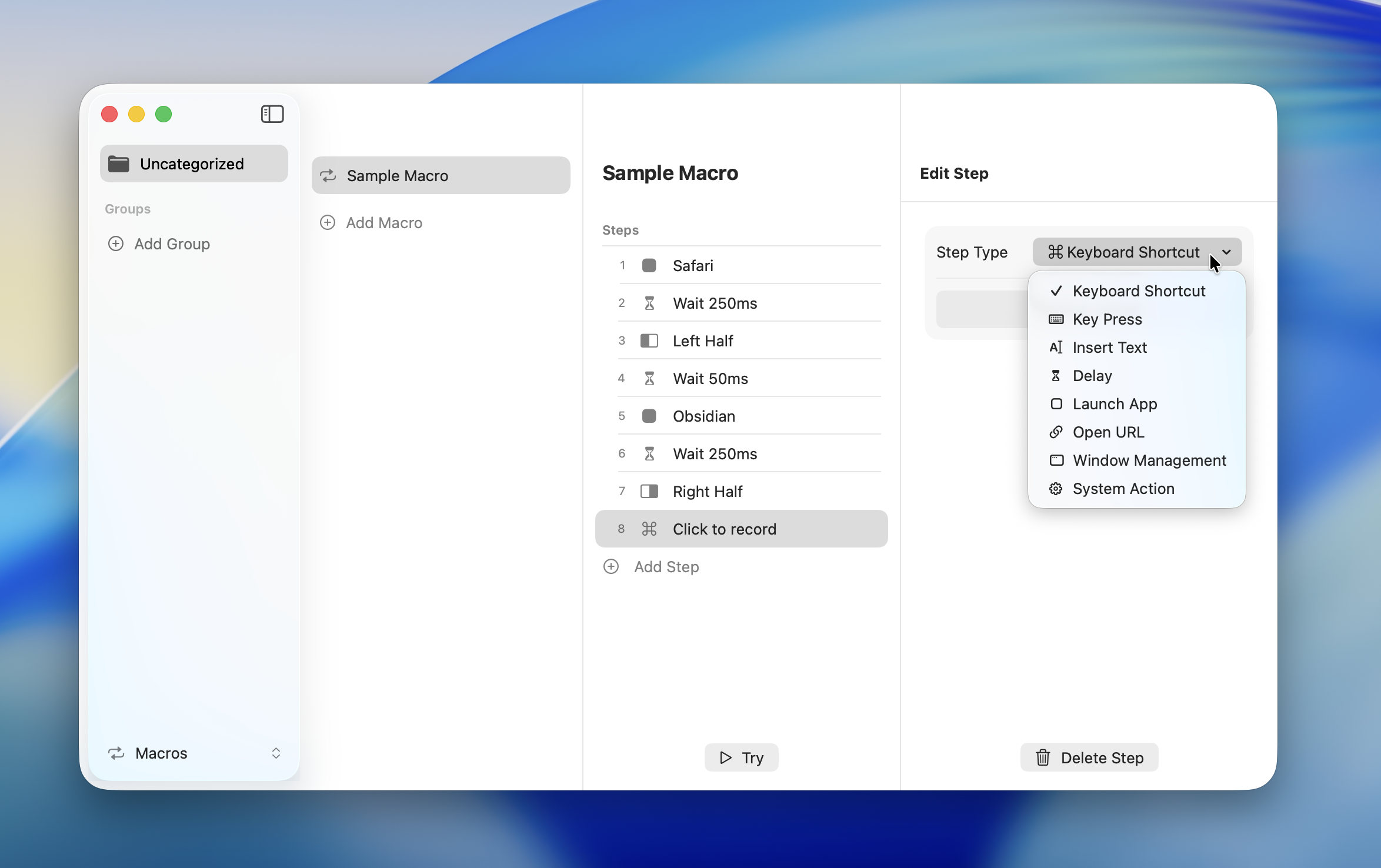
Macros use 8 types of steps in combination. Select a step type from the dropdown when adding a step.
| Step | Description |
|---|---|
| Keyboard Shortcut | Send a key combination with modifier keys |
| Key Press | Press a single key (Return, Tab, arrow keys, etc.) |
| Text Input | Paste text via the clipboard |
| Delay | Insert a wait time in milliseconds |
| Launch App | Launch an application |
| Open URL | Open a URL or custom URL scheme |
| Window Management | Change window layout (15 layouts) |
| System Action | System operations like volume, brightness, and media (11 actions) |
Keyboard Shortcut
Sends a modifier key (Command / Option / Control / Shift) plus key combination. Use this to send shortcut keys to the active application.
Configuration
- Select "Keyboard Shortcut" as the step type
- Click the recording field and press the key combination you want to send
A single key without modifiers can't be recorded. To send a single key without modifiers, use Key Press instead.
Key Press
Sends a single key such as Return, Tab, or arrow keys. Use this when you need to send a special key without modifiers.
Configuration
- Select "Key Press" as the step type
- Choose the key to send from the dropdown
Supported Keys
Basic
| Key | Description |
|---|---|
| Return | Enter / confirm |
| Tab | Tab navigation |
| Delete | Backward delete (Backspace) |
| Forward Delete | Forward delete |
| Escape | Cancel / close |
| Space | Space input |
Navigation
| Key | Description |
|---|---|
| Up / Down / Left / Right | Arrow keys |
| Page Up / Page Down | Scroll by page |
| Home / End | Jump to beginning / end |
Function Keys
F1 through F12 are available.
Text Input
Pastes text via the clipboard. Useful for inserting boilerplate text or code snippets into a text editor.
Configuration
- Select "Text Input" as the step type
- Enter the text you want to input in the text field (supports multiple lines)
INFO
Text Input temporarily uses the clipboard, but your original clipboard content is automatically restored. If you copy something else right after pasting, the original content may not be restored.
Delay
Waits for the specified number of milliseconds. Use this when a previous step needs time to finish before the next one runs.
Configuration
- Select "Delay" as the step type
- Set the wait time in milliseconds (1 -- 10,000ms)
You can also choose from preset buttons: 50ms, 100ms, 250ms, 500ms, 1000ms.
Delay Guidelines
| Scenario | Recommended |
|---|---|
| Short pause between key inputs | 50 -- 100ms |
| Waiting for app switching | 200 -- 500ms |
| Waiting for app launch | 500 -- 1,000ms |
| Waiting for heavy apps or processing | 1,000ms or more |
TIP
If the delay is too short, subsequent steps may not work correctly. Increase the delay if behavior is unstable.
Launch App
Launches the specified application. If the app is already running, it brings it to the foreground.
Configuration
- Select "Launch App" as the step type
- Choose an application from the app list
TIP
If you're sending keyboard shortcuts after launching an app, add a Delay step in between for more reliable behavior.
Open URL
Opens a URL in the default browser. Custom URL schemes are also supported.
Configuration
- Select "Open URL" as the step type
- Enter the URL to open in the URL field
Supported URL Types
| Type | Example |
|---|---|
| Web URL | https://example.com |
| File path | file:///Users/... |
| Email link | mailto:user@example.com |
| Custom URL scheme | slack://open, vscode://file/... |
Window Management
Changes the layout of the active window. Choose from 15 layout options.
Configuration
- Select "Window Management" as the step type
- Choose a layout
- Select the target screen
Supported Layouts
| Category | Layouts |
|---|---|
| Halves | Left Half, Right Half, Top Half, Bottom Half |
| Quarters | Top Left, Top Right, Bottom Left, Bottom Right |
| Thirds | Left Third, Center Third, Right Third, Left Two-Thirds, Right Two-Thirds |
| Other | Maximize, Minimize, Center, Next Monitor, Previous Monitor |
Target Screen
| Value | Description |
|---|---|
| Active Window's Screen | Places the window on the screen where the focused window is located |
| Menu Position's Screen | Places the window on the screen where the menu was displayed |
INFO
The target screen setting doesn't apply to "Next Monitor," "Previous Monitor," and "Minimize."
For layout details, see Action Types.
System Action
Executes system-level operations such as volume, brightness, and media playback controls.
Configuration
- Select "System Action" as the step type
- Choose the action to perform
Supported Actions
| Category | Actions |
|---|---|
| Display | Brightness Up, Brightness Down |
| Audio | Volume Up, Volume Down, Toggle Mute |
| Media | Play / Pause, Next Track, Previous Track |
| System | Mission Control, App Expose, Launchpad |
For action details, see Action Types.