Action Types
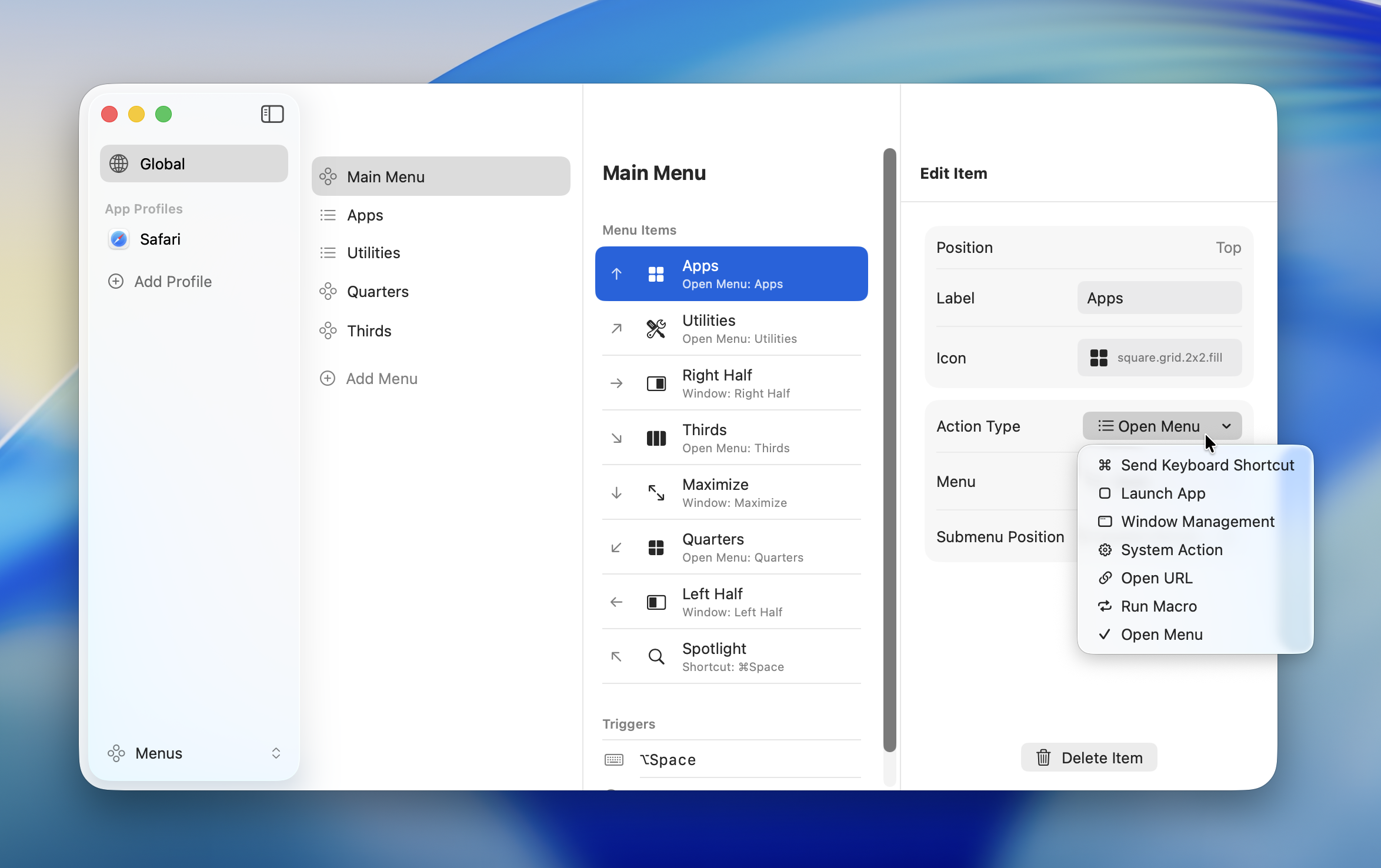
Each menu item is assigned an action that defines what happens when selected. Choose from 7 action types.
| Action Type | Summary |
|---|---|
| Launch App | Launch a specified application |
| Open URL | Open a web URL or custom URL scheme |
| Send Keyboard Shortcut | Send a key combination to the active app |
| Run Macro | Run a predefined macro |
| Open Menu | Open another menu as a submenu |
| Window Management | Snap a window to a layout position |
| System Action | Control volume, media playback, and other system functions |
Launch App
Launches a specified application. If the app is already running, it switches to that app.
Configuration
- Select "Launch App" as the action type
- Choose an app from the "Application" field
When you select an app, the label and icon are set automatically.
TIP
You can also change the icon to an SF Symbols icon or an emoji.
Open URL
Opens a specified URL in the default browser or the corresponding app.
Configuration
- Select "Open URL" as the action type
- Enter a URL in the "URL" field
Supported URL Types
| URL Type | Example | Use case |
|---|---|---|
| Web URL | https://example.com | Open a website |
| Custom URL scheme | slack://open | App-specific actions |
mailto: link | mailto:user@example.com | Open a mail compose window |
| File path | file:///Users/... | Open a local file |
Custom URL Scheme Examples
Many apps support custom URL schemes.
| App | URL Scheme | Action |
|---|---|---|
| Slack | slack://open | Open Slack |
| Obsidian | obsidian://open?vault=MyVault | Open a specific vault |
| Figma | figma://file/xxxxx | Open a specific file |
| Zoom | zoommtg://zoom.us/start | Start a meeting |
| Spotify | spotify:playlist:xxxxx | Open a playlist |
Send Keyboard Shortcut
Sends a keyboard shortcut to the active application. Use this to trigger app-specific commands from a menu.
Configuration
- Select "Send Keyboard Shortcut" as the action type
- Click the input field to activate the recorder
- Press the shortcut you want to send
Modifier Keys
Combine the following modifier keys as needed.
| Modifier | Symbol |
|---|---|
| Command | ⌘ |
| Option | ⌥ |
| Control | ⌃ |
| Shift | ⇧ |
TIP
For example, set ⌘⌥I to open Chrome's Developer Tools, or ⌘⌥K to create a component in Figma.
Run Macro
Runs a predefined macro. Use this when you want to execute multiple steps in sequence.
Configuration
- Select "Run Macro" as the action type
- Choose the macro from the "Macro" field
Macros are created and managed in the "Macros" section of Settings.
See Creating and Running Macros for details.
Open Menu
Opens another menu as a submenu. Use this to build a hierarchical menu structure.
Configuration
- Select "Open Menu" as the action type
- Choose the menu from the "Menu" field
TIP
Use the "New Menu" button in the menu picker to create a new menu on the spot. The new menu is added to the current profile and selected automatically.
Submenu Position
Choose where the submenu appears.
| Option | Description |
|---|---|
| Current mouse position | Display the submenu at the cursor's current location (default) |
| Parent menu position | Display the submenu where the parent menu was opened |
Use Cases
- Open a List Menu from a Radial Menu item
- Organize menus into categories with a hierarchical structure
- Nest List Menus within each other
TIP
Assign "Open Menu" to a Radial Menu slot and point it to a List Menu. This lets you combine both menu types in a single workflow.
Window Management
Snaps the active window to a specified layout position.
Configuration
- Select "Window Management" as the action type
- Choose a layout
- Choose the target screen
Layouts
Halves
| Layout | Description |
|---|---|
| Left Half | Snap to the left half of the screen |
| Right Half | Snap to the right half of the screen |
| Top Half | Snap to the top half of the screen |
| Bottom Half | Snap to the bottom half of the screen |
Quarters
| Layout | Description |
|---|---|
| Top Left | Snap to the top-left quarter |
| Top Right | Snap to the top-right quarter |
| Bottom Left | Snap to the bottom-left quarter |
| Bottom Right | Snap to the bottom-right quarter |
Thirds
| Layout | Description |
|---|---|
| Left Third | Snap to the left third |
| Center Third | Snap to the center third |
| Right Third | Snap to the right third |
| Left Two Thirds | Snap to the left two-thirds |
| Right Two Thirds | Snap to the right two-thirds |
Other
| Layout | Description |
|---|---|
| Maximize | Expand to fill the entire screen |
| Minimize | Minimize the window to the Dock |
| Center | Center the window on screen |
| Next Monitor | Move to the next monitor |
| Previous Monitor | Move to the previous monitor |
Target Screen
Choose which screen the window is placed on.
| Option | Description |
|---|---|
| Active window's screen | The screen where the focused window is located (default) |
| Menu position's screen | The screen where the menu was displayed |
INFO
The target screen setting doesn't apply to "Next Monitor," "Previous Monitor," or "Minimize."
System Action
Performs a macOS system-level action.
Configuration
- Select "System Action" as the action type
- Choose the action to perform
When you select an action, the label and icon are set automatically.
Available Actions
Display
| Action | Description |
|---|---|
| Brightness Up | Increase screen brightness |
| Brightness Down | Decrease screen brightness |
Audio
| Action | Description |
|---|---|
| Volume Up | Increase volume |
| Volume Down | Decrease volume |
| Mute / Unmute | Toggle audio mute |
Media
| Action | Description |
|---|---|
| Play / Pause | Toggle media playback |
| Next Track | Skip to the next track |
| Previous Track | Go back to the previous track |
System
| Action | Description |
|---|---|
| Mission Control | Open Mission Control |
| App Exposé | Open App Exposé |
| Launchpad | Open Launchpad |