App Profiles
App Profiles let you switch menu content based on the active application. Define shared menus in the Global Profile, then customize them for specific apps with app-specific profiles.
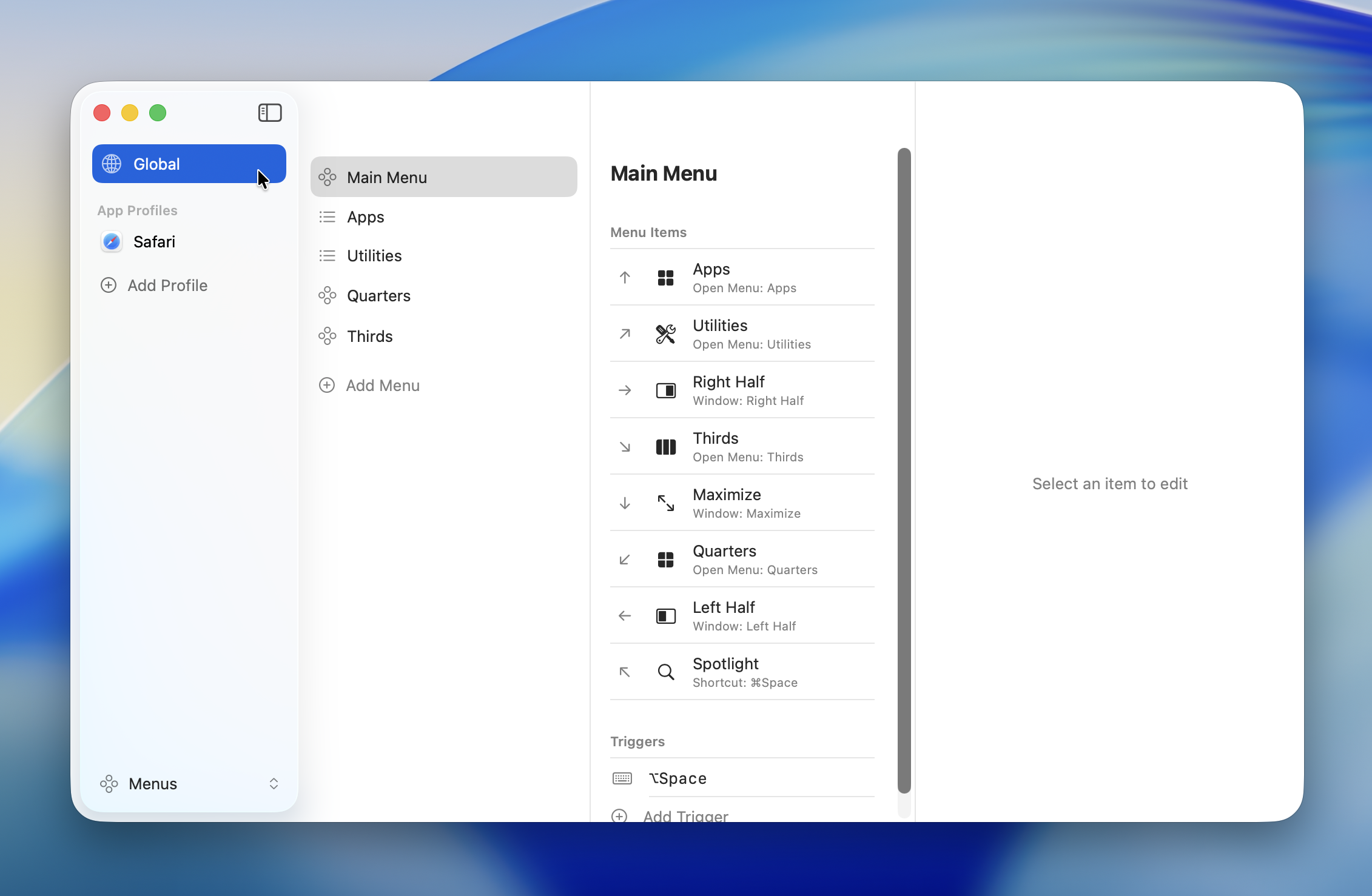
Global Profile
The Global Profile defines menus and hotkeys shared across all applications. When no app-specific profile exists for an app, the Global Profile's settings apply.
The Global Profile always exists and can't be deleted.
App-Specific Profiles
An app-specific profile applies when a particular application is in the foreground. You can configure menus and hotkeys tailored to that app.
Priority
App-specific profiles take priority over the Global Profile.
| Condition | Profile applied |
|---|---|
| App-specific profile exists | App-specific profile |
| No app-specific profile | Global Profile |
If the same hotkey is set in both the Global and an app-specific profile, the app-specific profile's setting is used.
Creating a Profile
- Open the "Menus" section in Settings
- Click the "+" button at the bottom of the profile list
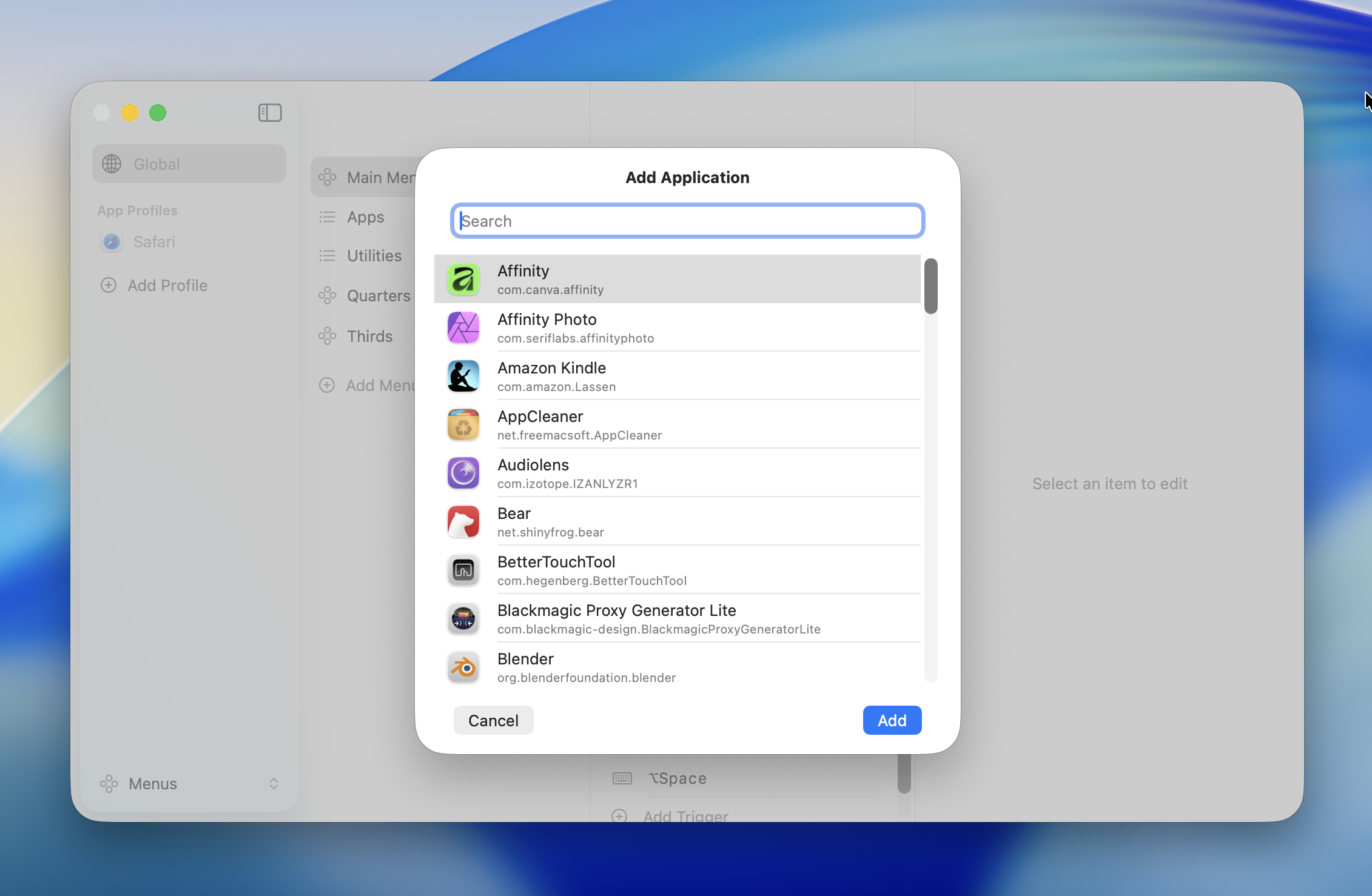
- Select the target app from the application list
TIP
Use the search field to filter applications by name.
Once selected, a profile is created for that app. You can then freely configure its menus and hotkeys.
Editing a Profile
Select a profile to edit its menus and hotkeys.
- Add, remove, or reorder menus
- Edit menu items (configure Action Types)
- Add or change Hotkeys
Deleting a Profile
App-specific profiles can be deleted. Select the profile and click the "-" button at the bottom of the list.
WARNING
Deleting a profile also removes all menus and hotkeys associated with it.
The Global Profile can't be deleted.