Creating & Running Macros
Learn how to create macros, edit their steps, assign them to menu items, and run them.
Creating a Macro
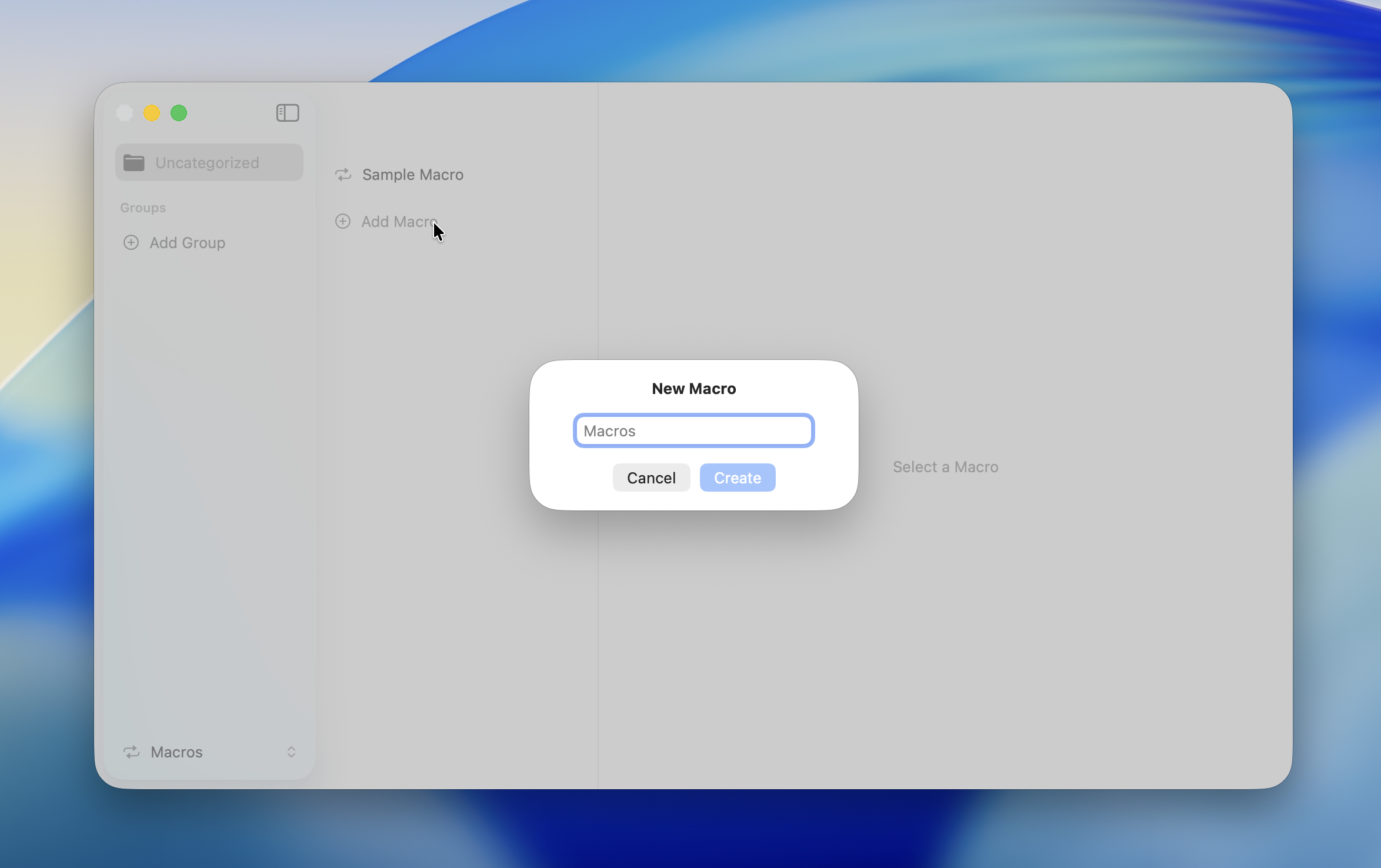
- Open the "Macros" tab in Settings
- Select a macro group from the left column
- Click "Add Macro" in the center column
- A "New Macro" is created
TIP
Rename a macro from the context menu by selecting "Rename Macro." Descriptive names make it easier to find macros when assigning them to menu items.
Adding Steps
- With a macro selected, click "Add Step"
- The step editor appears in the right column
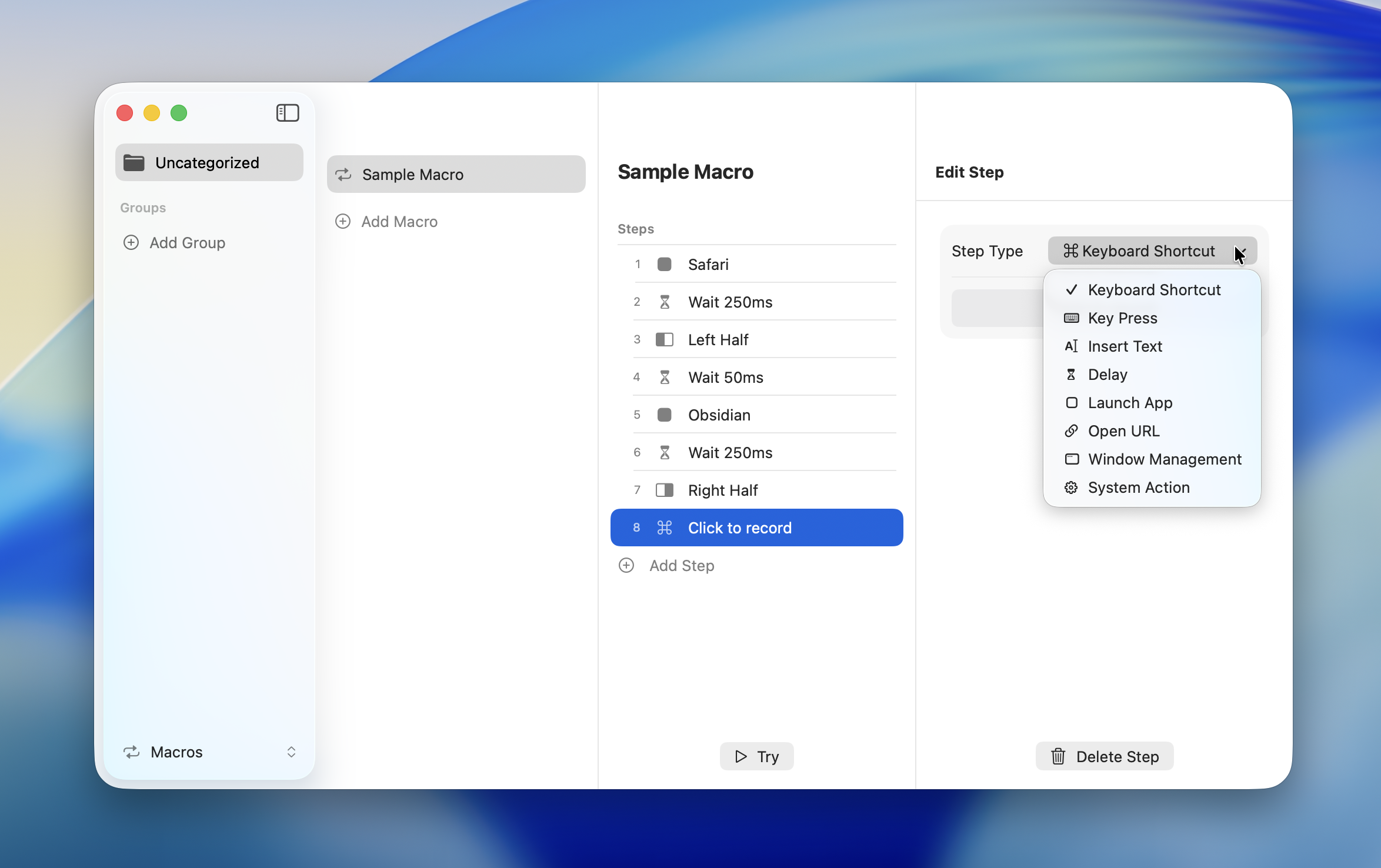
- Select a type from the "Step Type" dropdown
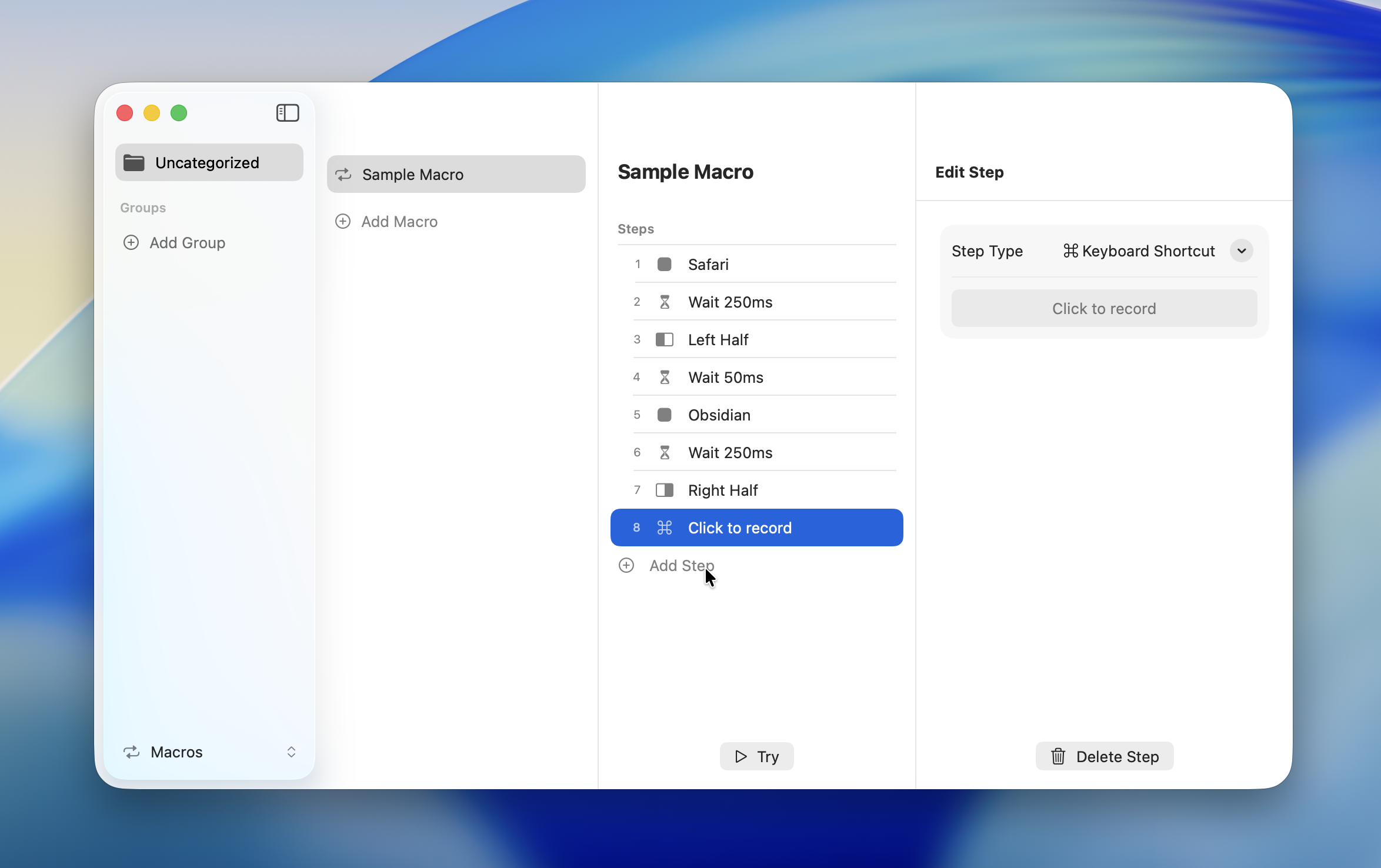
The 8 available step types are:
| Type | Summary |
|---|---|
| Keyboard Shortcut | Send a modifier key + key combination |
| Key Press | Send a single key (Return, Tab, etc.) |
| Text Input | Paste text via the clipboard |
| Delay | Wait for a specified time in milliseconds |
| Launch App | Launch an application |
| Open URL | Open a URL |
| Window Management | Change window layout |
| System Action | Execute a system-level operation |
For details on each step, see Step Types.
Reordering Steps
Drag and drop steps to change their order. Macros execute steps from top to bottom, so order matters.
Editing Steps
Select a step from the step list in the center column to open its editor in the right column. Changing the step type updates the settings fields accordingly.
Deleting Steps
Click "Delete Step" at the bottom of the step editor.
WARNING
Step deletion can't be undone.
Running a Macro
Macros don't run on their own. Assign a macro to a menu item by selecting "Run Macro" as its action type.
Assigning to a Menu Item
- Open the "Menus" tab in Settings
- Select a menu item
- Choose "Run Macro" from the "Action Type" dropdown
- Select the macro you want to run from the dropdown
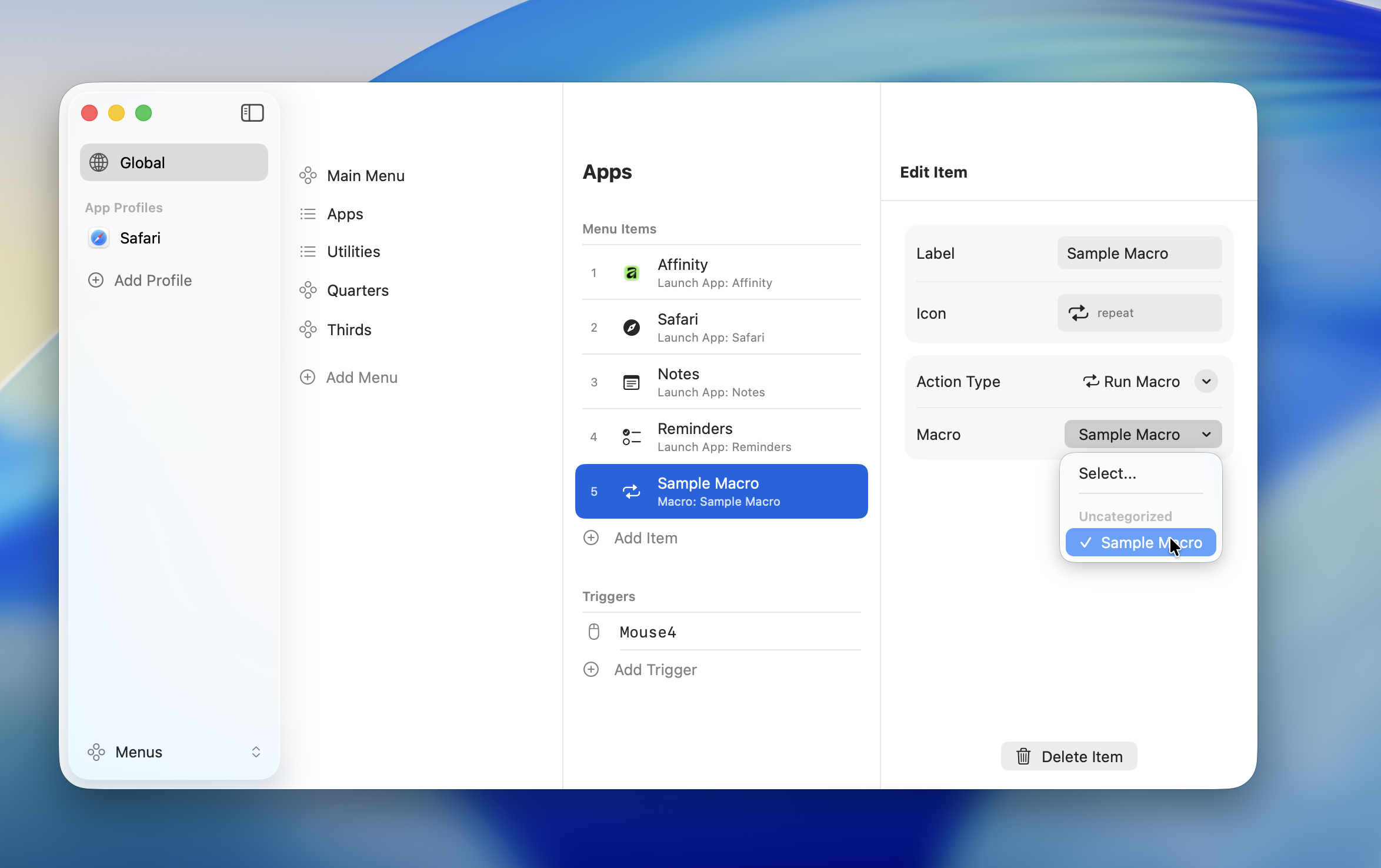
Once assigned, trigger the hotkey to open the menu, select the item, and the macro runs.
TIP
For details on actions, see Action Types.
Editing a Macro
To rename a macro, right-click it and select "Rename Macro" from the context menu.
Deleting a Macro
Right-click a macro and select "Delete."
DANGER
Macro deletion can't be undone. All steps in the macro will also be deleted.
Duplicating a Macro
Right-click a macro and select "Duplicate." This is useful for creating a new macro based on an existing one.
Practical Examples
Text Replacement Macro
Select all text and replace it with boilerplate content.
| Step | Type | Details |
|---|---|---|
| 1 | Keyboard Shortcut | Command + A (Select All) |
| 2 | Text Input | Replacement text |
Window Layout Macro
Set up a side-by-side workspace with two apps.
| Step | Type | Details |
|---|---|---|
| 1 | Launch App | Safari |
| 2 | Delay | 500ms |
| 3 | Window Management | Left Half |
| 4 | Launch App | Notes |
| 5 | Delay | 500ms |
| 6 | Window Management | Right Half |
TIP
Add a delay after launching an app for more reliable behavior. Around 500ms is a good starting point.
Boilerplate Email Macro
Open a new message in Mail and fill in the recipient, subject, and body.
| Step | Type | Details |
|---|---|---|
| 1 | Launch App | |
| 2 | Delay | 500ms |
| 3 | Keyboard Shortcut | Command + N (New Message) |
| 4 | Delay | 250ms |
| 5 | Text Input | Recipient email address |
| 6 | Key Press | Tab |
| 7 | Text Input | Subject text |
| 8 | Key Press | Tab |
| 9 | Text Input | Body text |
Related Pages
- Macros Overview -- Overall macro system structure
- Step Types -- Details on the 8 step types
- Action Types -- All actions including "Run Macro"