Using with Logitech G HUB
This page explains how to use Logitech gaming mice (G604, G502, etc.) with Radiant.
WARNING
Updates to G HUB or macOS may cause the settings described here to stop working. The contents of this page are not guaranteed to work. If something isn't working, review your G HUB macro settings.
When buttons are not recognized
Logitech gaming mice have some buttons assigned to hardware-level functions such as "DPI Shift" by default. These buttons do not send events to macOS, so Radiant cannot detect them.
If a button is not recognized, check its assignment in G HUB and change it to one of the methods below.
Button assignment methods
Method 1: Assign to Mouse Button 4/5
Assigning a button to "Mouse Button 4" or "Mouse Button 5" in G HUB allows Radiant to detect it directly as a mouse button in the hotkey settings.
- Open the button assignment in G HUB
- Select "Mouse Button 4" or "Mouse Button 5"
- Register it in Radiant's hotkey settings
INFO
G HUB only allows assigning Mouse Button 4 and Mouse Button 5 as mouse buttons. If you need more than two buttons, use the Sequence macro method below.
Method 2: Use a Sequence macro
G HUB's "Sequence" macro can send separate key inputs on button press and release. This supports all operation modes.
Steps
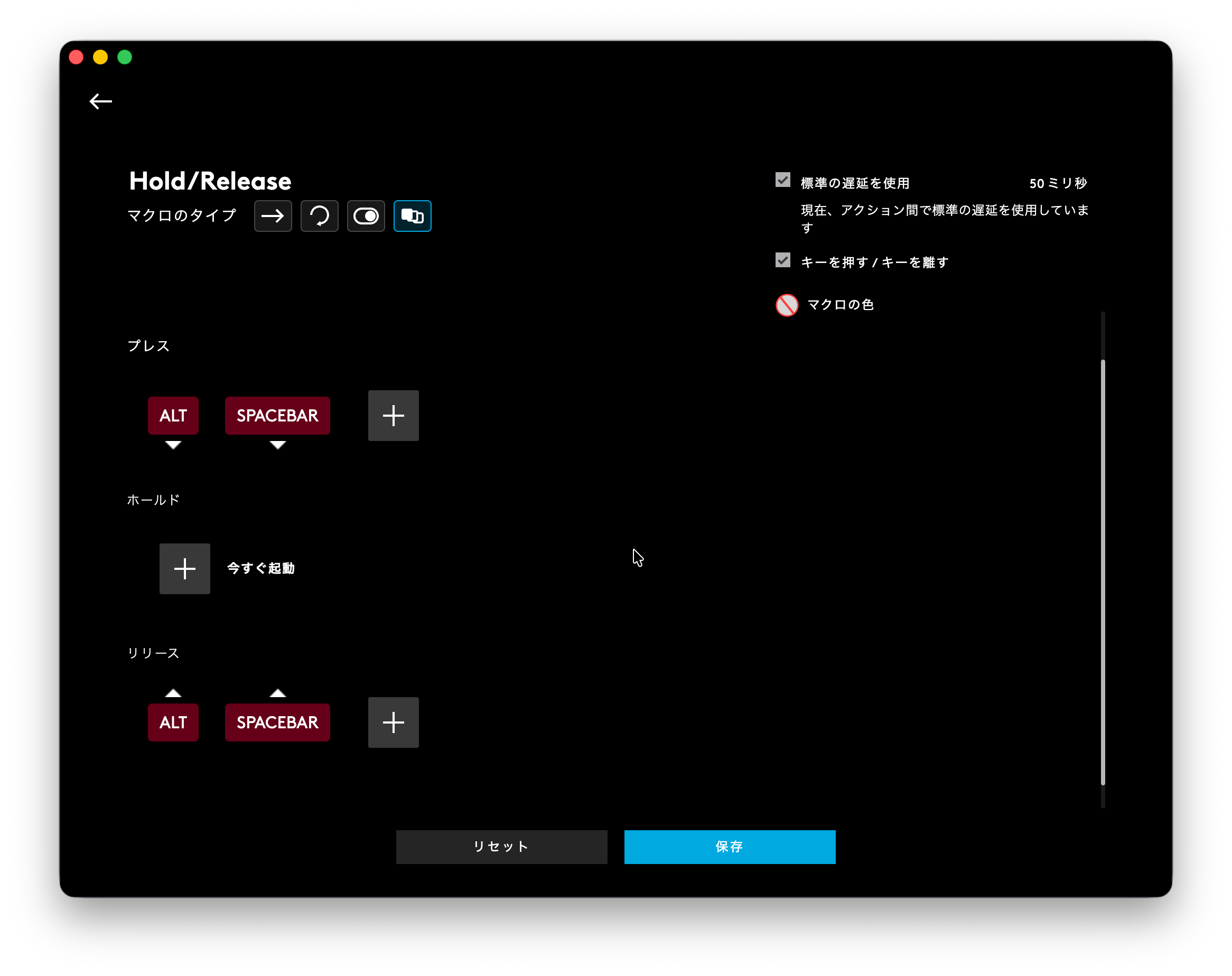
1. Create a Sequence macro in G HUB
Select "Sequence" as the macro type and configure it as follows:
- ON PRESS: Register the key combination you want to use (e.g., ⌥Space)
- WHILE HOLDING: Leave empty
- ON RELEASE: Register the same key combination as ON PRESS
Enable the "press/release" option. This ensures only keyDown is sent on press and only keyUp is sent on release.
2. Assign the macro to a button
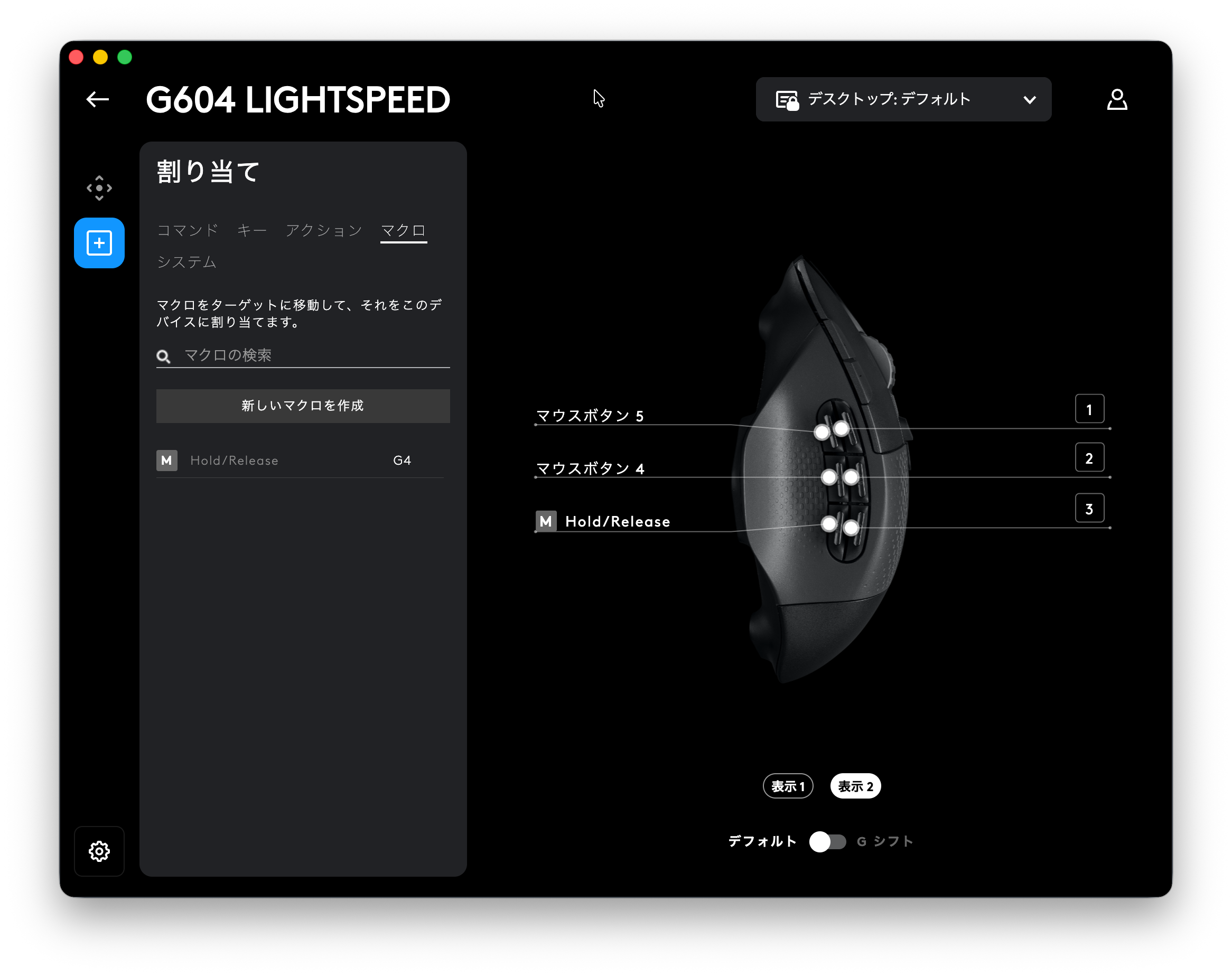
Assign the Sequence macro you created to the button you want to use.
3. Register the hotkey in Radiant
In Radiant's menu settings, register the key combination from step 1 (e.g., ⌥Space) as a hotkey.
TIP
Choose a key combination that doesn't conflict with other applications. Uncommon combinations like ⌥Space or ⌃⇧F13 work well.
Operation mode compatibility
The supported operation modes depend on the assignment method.
| Assignment method | Release or Click | Click | Toggle |
|---|---|---|---|
| Mouse Button 4/5 | ✅ | ✅ | ✅ |
| Sequence macro | ✅ | ✅ | ✅ |
| Standard macro | ❌ | ✅ | ✅ |
INFO
Standard macros send keyDown and keyUp simultaneously, so they do not support hold operation (Release or Click). If you need hold operation, use a Sequence macro.