
Data
The Data tab in Settings lets you configure auto-populate, auto-insert delay, and export/import your settings.
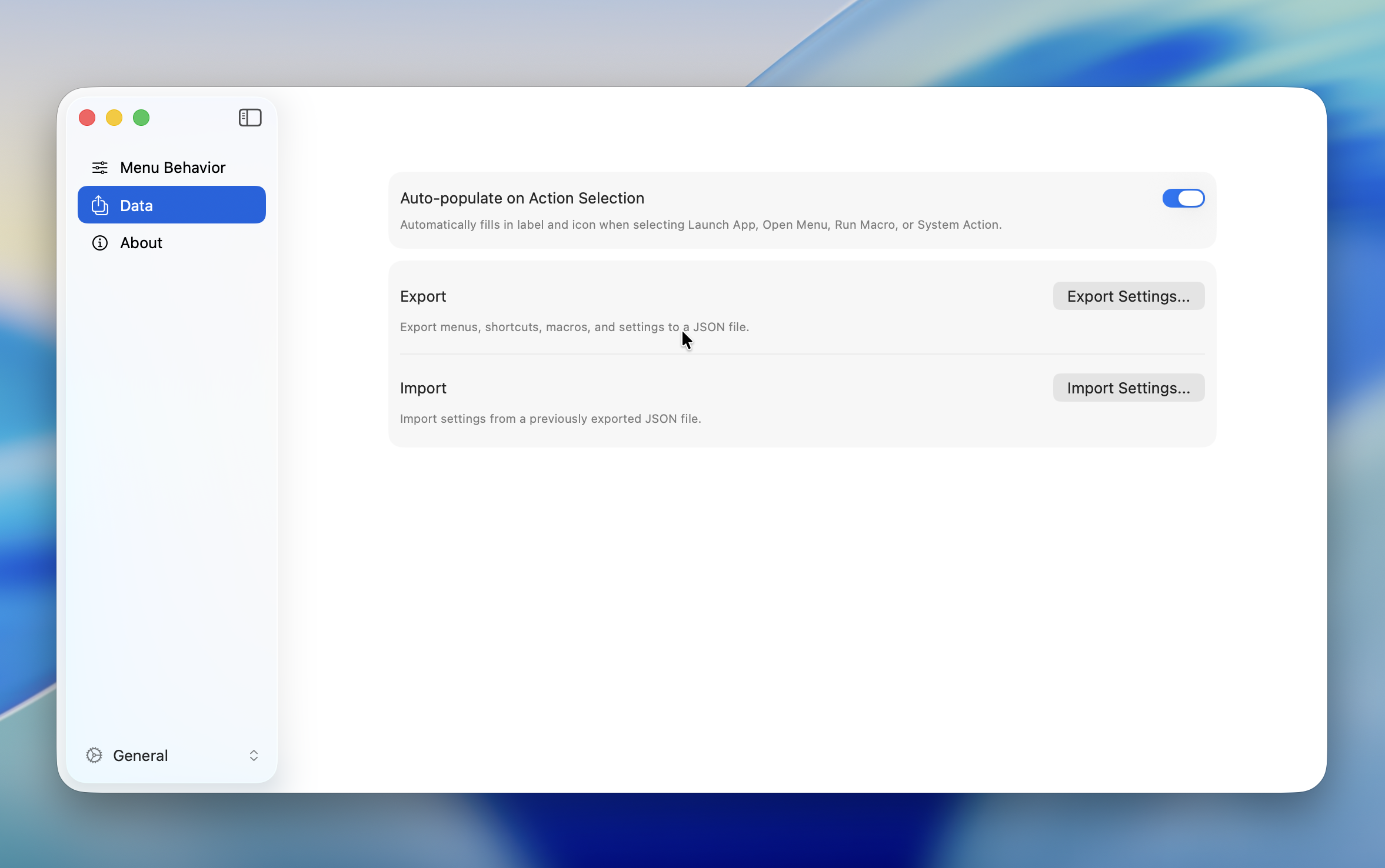
Auto-populate
Automatically fills in the label and icon when you select an action. Applies to four action types: Launch App, Open Menu, Run Macro, and System Action.
Default: On
TIP
This overwrites any existing label or icon. Turn it off if you prefer to set them manually.
Auto-insert Delay
Automatically appends a 500ms Delay step after each new macro step you add. Since macro steps often need delays between them for reliable execution, this saves you the effort of adding them manually.
Default: On
TIP
Inserted delay steps can be freely edited or deleted afterward. For more on delays, see Step Types.
Export
Export from "Export Settings..." in Settings.
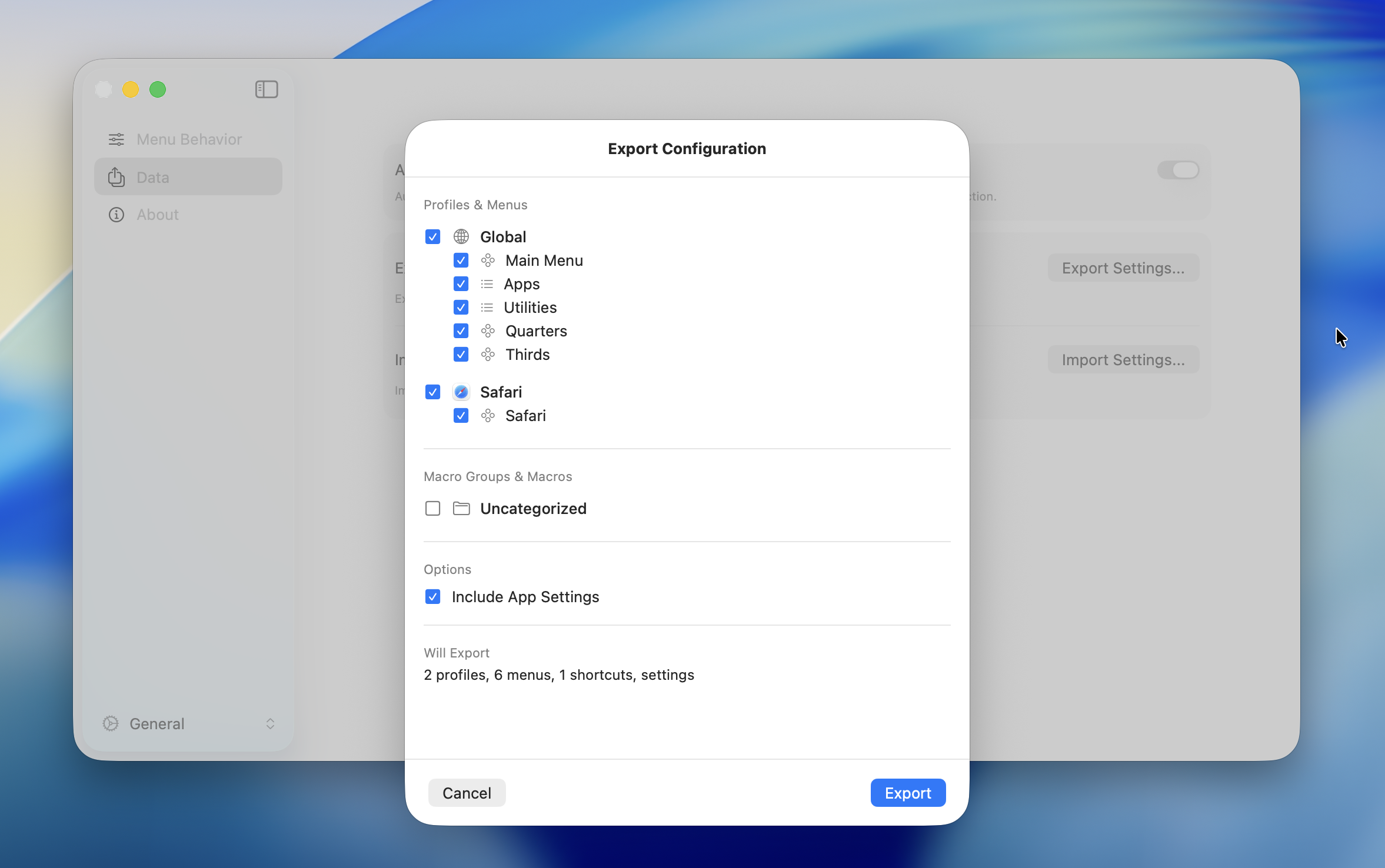
Selecting Export Items
Choose what to include using checkboxes.
| Category | Contents |
|---|---|
| Profiles and Menus | App Profiles, Radial Menus, List Menus, Hotkeys |
| Macro Groups and Macros | Macro groups and macros |
| App Settings | General settings such as Dead Zone, animation, and style |
You can select or deselect individual menus and macros. Unchecked items are excluded from the export.
Reference Warnings
If a selected menu references an unselected menu or macro, a warning is shown. For example, if an Open Menu action points to a menu that isn't selected, that action won't work correctly after import.
WARNING
When a warning appears, include the referenced items in the export.
Saving the File
Click "Export" to open a save dialog. The data is saved as a JSON file.
Import
Import from "Import Settings..." in Settings. Select a previously exported JSON file in the file chooser.
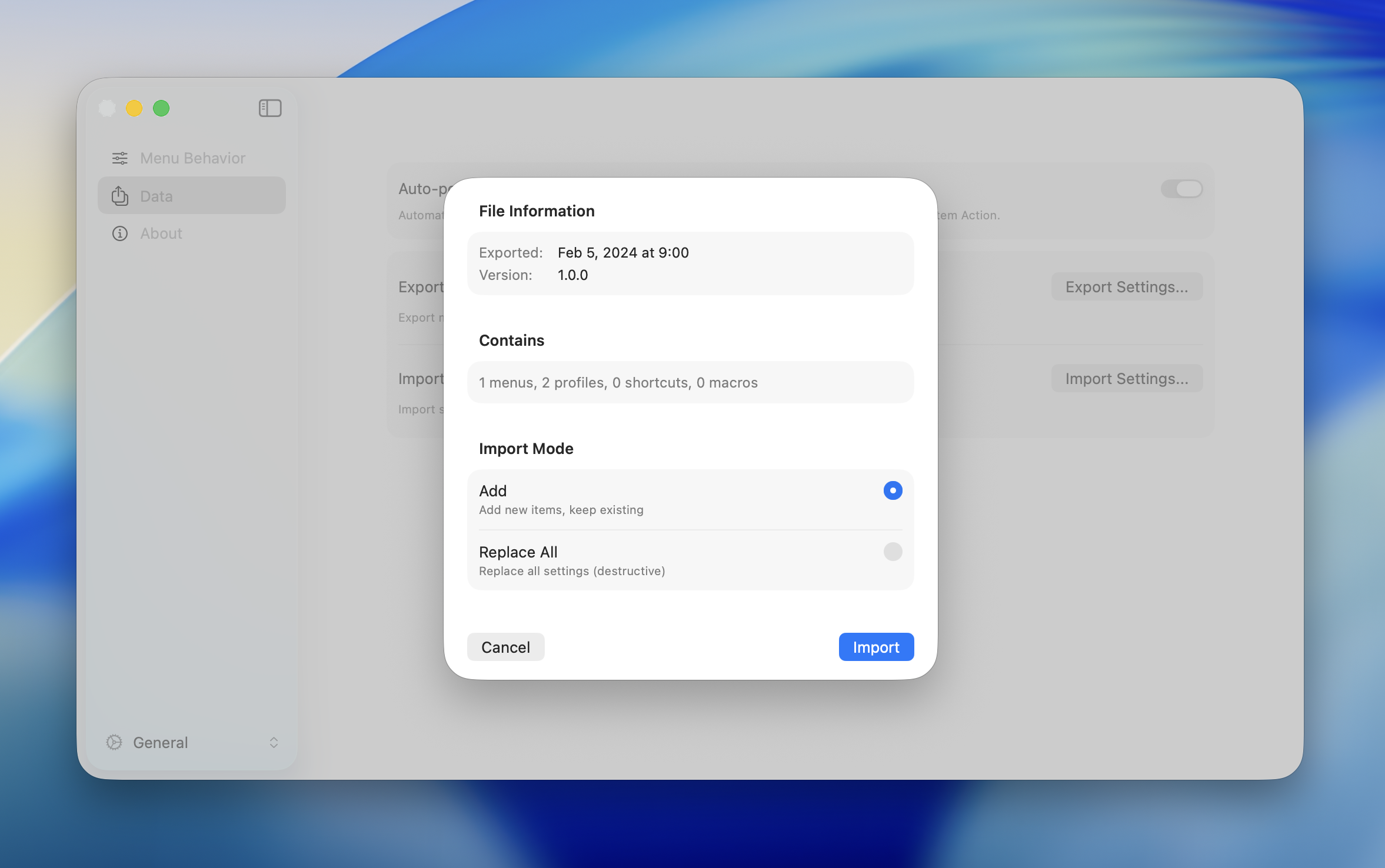
Import Mode
After selecting a file, a preview and mode selection appear.
| Mode | Description |
|---|---|
| Add | Adds new items to the existing data. Existing items are preserved |
| Replace All | Deletes all existing menus, profiles, macros, and settings, then replaces them with the imported data |
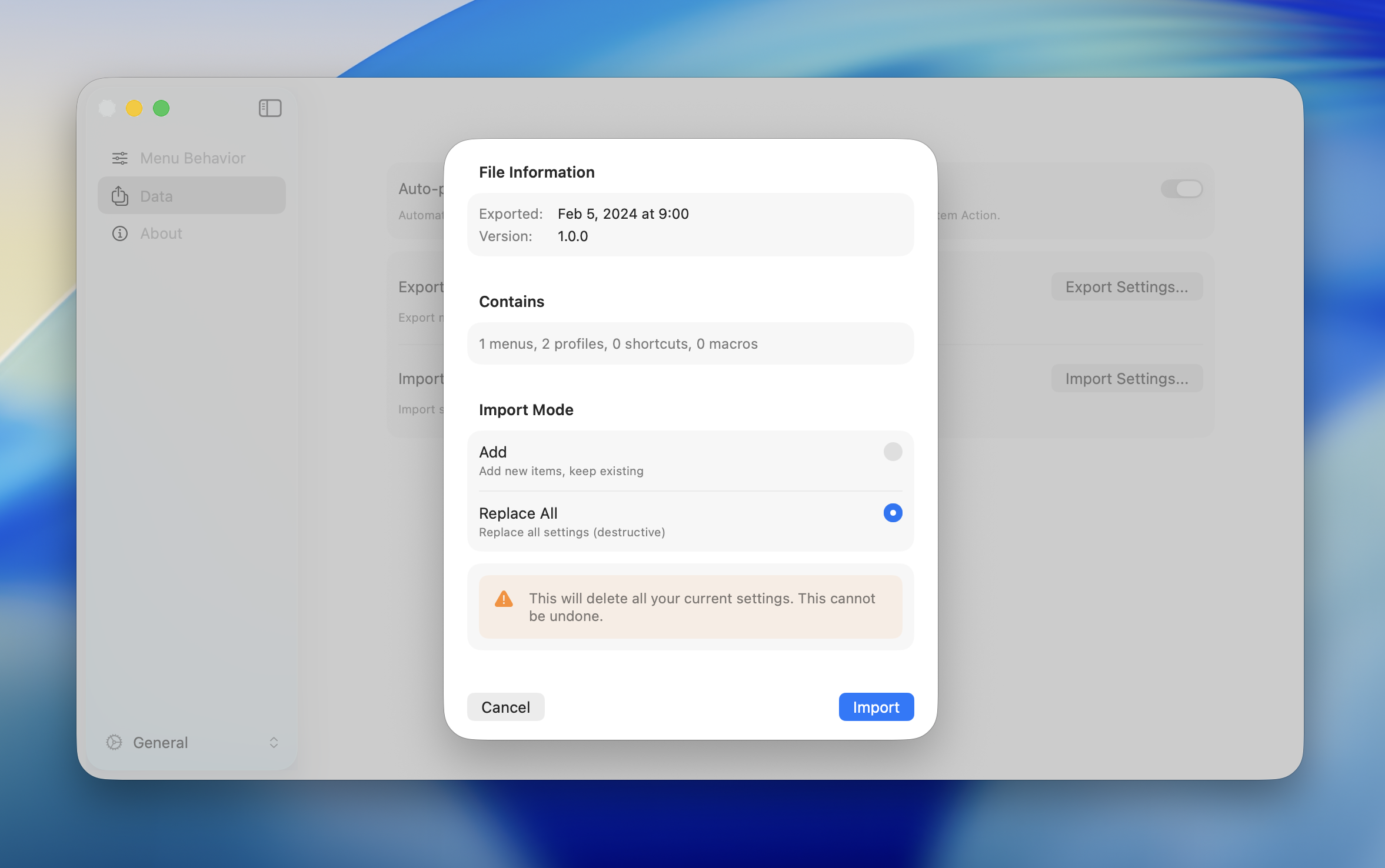
DANGER
"Replace All" deletes all current settings. This cannot be undone. A confirmation dialog is shown before proceeding.
Hotkey Conflicts
When importing in Add mode, any hotkey that conflicts with an existing hotkey is detected. Conflicting hotkeys are skipped, but the rest of the data (menus, actions, etc.) is imported normally.
File Validation
The file is automatically checked on import. If there's a problem with the file, an error message is shown and the import is canceled. Your existing data remains unchanged.
TIP
If an import fails, check whether the export file was manually edited. The file may be corrupted.