
Use as an App Launcher
Turn Radiant into an app launcher. Open your favorite apps with a single hotkey.
What You Can Do
Place frequently used apps in a Radial Menu or List Menu and invoke them with a hotkey. For example, put 8 apps on a Radial Menu and access all of them from one shortcut.
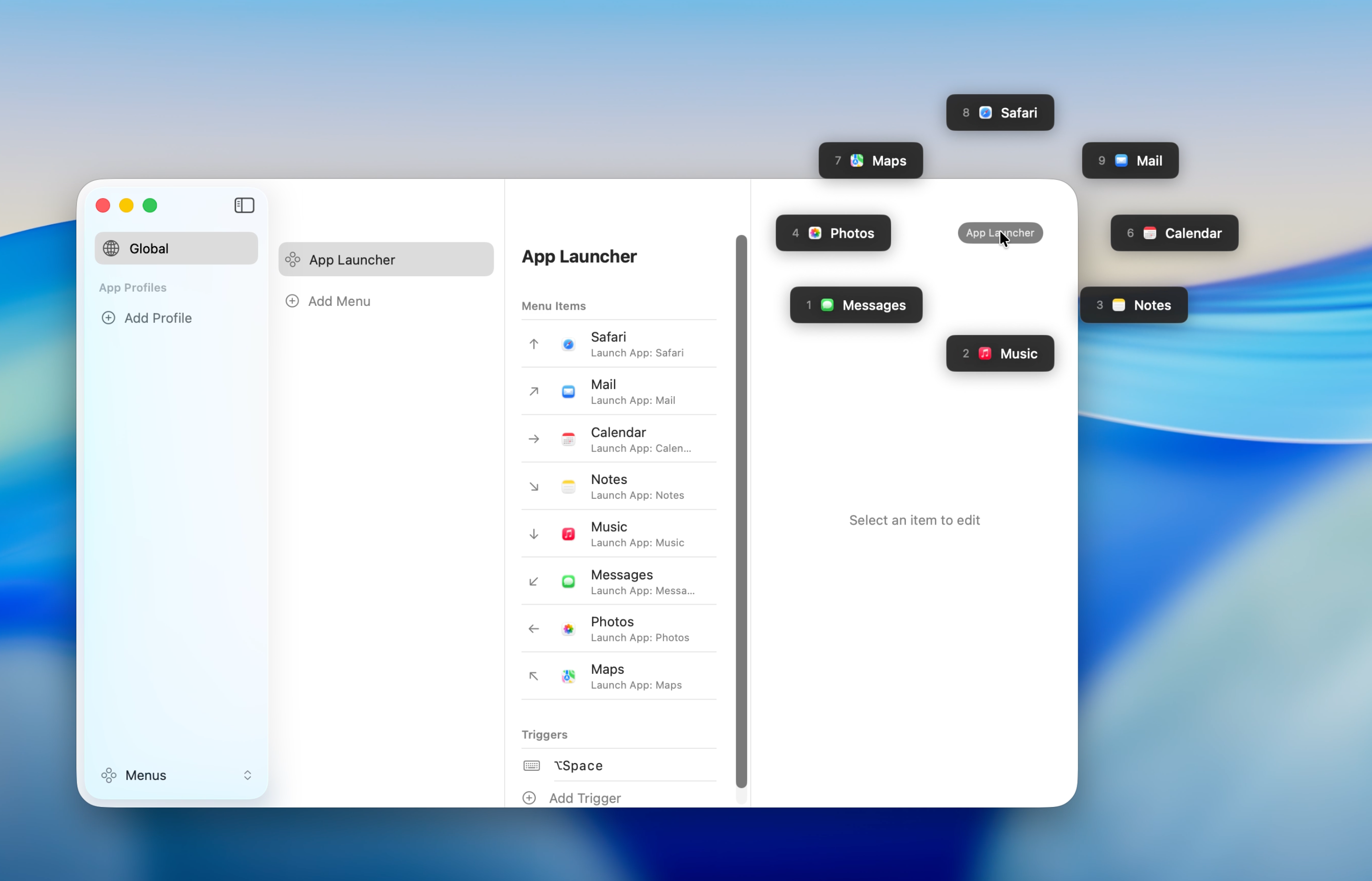
If an app is already running, Radiant switches to it. No need for Dock or Spotlight -- switch apps from anywhere, anytime.
Setup
Add Apps to a Menu
- Click the Radiant icon in the menu bar and open "Settings..."
- In the "Menus" section, create a new menu. Click the "+" button and choose either Radial Menu or List Menu
Radial Menu vs. List Menu
Both menu types hold up to 8 items. A Radial Menu arranges them in a circle, making selection fast with minimal mouse travel. A List Menu stacks them vertically, making it easy to scan at a glance.
- Click "Add Item" to add a new item
- Set the "Action Type" to "Launch App"
- Click "Select..." in the "Application" field and pick the app you want to launch. The label and icon are set automatically when you select an app
- Repeat the same steps to add as many items as you need
Assign a Hotkey
Set a hotkey to invoke your menu.
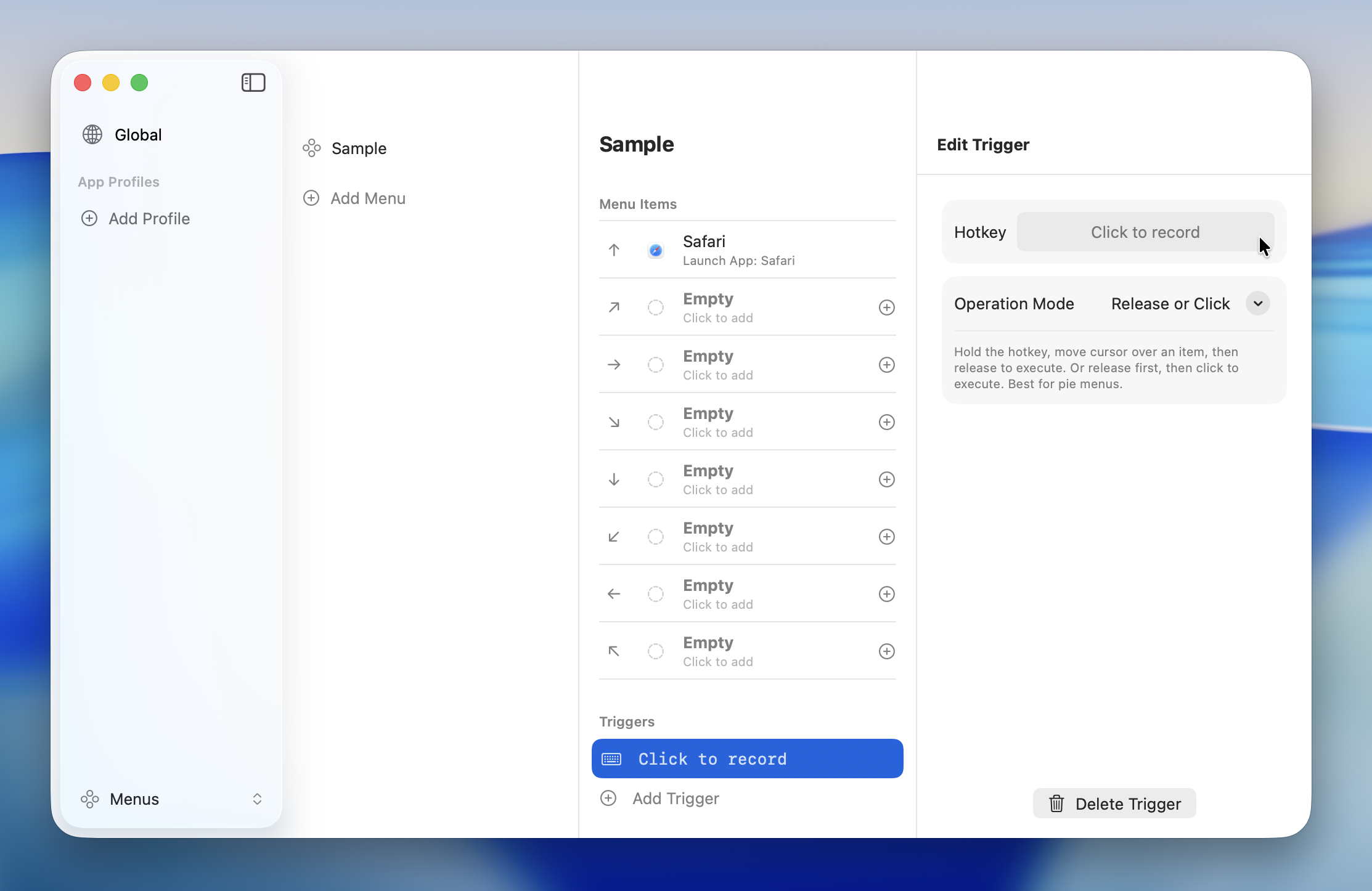
- In the "Trigger" section on the right, click the "+" button
- Click the input field to enter recording mode
- Press the key combination you want to use (e.g., ⌥Space)
TIP
Mouse middle-click and side buttons also work as hotkeys. See Hotkeys for details.
Test It Out
Once everything is configured, give it a try.
- Close the Settings window
- Press the hotkey you registered to display the menu
- Select an app and execute
Tips
Organize with Submenus
When you have many apps, use the "Open Menu" action to create categories. For example, group them into "Work," "Creative," and "Communication" submenus.
See Action Types > Open Menu for details on submenus.
Customize Icons
An icon is assigned automatically when you select an app, but you can change it. Choose from emoji or SF Symbols.